ms teams

Choosing a Video Conferencing Equipment Bundle

A meeting room can have a premium display, fast network connection, and a capable conferencing platform yet still deliver a poor experience if the camera misses half the table or the microphone picks up more air-conditioning than conversation. A properly specified video conferencing equipment bundle solves those gaps by bringing the core devices together as one compatible room solution.

For IT managers and procurement teams, the appeal is not simply convenience. Bundling can reduce compatibility risk, simplify purchasing, standardize the user experience across sites, and make support far easier after deployment. The right bundle also avoids a common expensive mistake: buying consumer-grade peripherals that work in a test call but fail under the demands of a busy boardroom, hybrid classroom, or shared meeting space.

What a Video Conferencing Equipment Bundle Should Include

At its most practical, a video conferencing equipment bundle combines the camera, audio hardware, compute or room controller, and display connection required to run meetings professionally. The exact configuration depends on room size, meeting platform, and how people use the space.

A small huddle room may only require an all-in-one video bar, a display, and a single USB connection to a laptop. A dedicated Microsoft Teams Rooms or Zoom Rooms space is more likely to need an appliance or compute unit, touch controller, camera, microphones, speakers, and commercial display. Larger rooms can add expansion microphones, a separate PTZ camera, a second display, wireless content sharing, and professional installation.

The best bundles are designed around a complete signal path. Participants need to be seen, heard, and able to share content without searching for cables, changing display inputs, or calling IT before every meeting. That is why the lowest initial hardware price is not always the best commercial outcome. A solution that reduces failed meetings, support tickets, and replacement purchases can offer much better long-term value.

Start With the Room, Not the Product Page

The room should drive the specification. Before comparing cameras or platforms, establish the table layout, room dimensions, typical attendee count, display location, lighting conditions, and whether users join from a dedicated room account or their own laptops.

Small rooms and huddle spaces

For spaces seating two to six people, an integrated video bar is often the most efficient option. These devices combine a wide-angle camera, microphones, and speakers in a compact unit. They reduce cabling and present a clean setup for rooms where the farthest participant is only a few feet from the device.

However, wide-angle does not automatically mean better. Extremely wide lenses can make faces at the end of a long table look distant, while low camera placement can create unflattering sightlines. Choose a bundle with framing features suited to the room and place the bar at an appropriate height below or above the display.

Medium conference rooms

Rooms seating six to 12 people often benefit from a more capable video bar or a modular system with a dedicated camera and table or ceiling microphones. Audio coverage becomes the critical factor here. The system needs to capture soft-spoken participants at the far end of the room while controlling echo and background noise.

For these rooms, consider whether the table shape, glass walls, and hard surfaces will affect acoustics. Expansion microphones may be a better investment than a higher-resolution camera if remote participants currently struggle to follow the discussion.

Boardrooms, training rooms, and divisible spaces

Large rooms demand a more deliberate design. A PTZ camera can frame speakers accurately from a distance, while multiple microphones or professionally installed audio coverage ensures every voice is captured. Dual displays are often worthwhile where teams need to view remote participants and shared content simultaneously.

This is also where installation and integration support matter most. Cable pathways, display mounting, network readiness, control systems, and room scheduling panels can all affect the final result. A bundle for a boardroom should be treated as a workplace technology project, not a carton of peripherals.

Choose the Platform Before Selecting the Hardware

A bundle should support the platform your organization actually uses, whether that is Microsoft Teams, Zoom, Google Meet, or a mixed environment. Platform-certified hardware gives buyers greater confidence that controls, updates, account management, and call features will work as intended.

Dedicated room systems are ideal for organizations that want walk-in, tap-to-join meetings. They provide a consistent experience and can be centrally managed across multiple locations. The trade-off is that they require room licenses, network configuration, and a clear ownership model for updates and support.

USB-based bundles remain a strong choice for flexible spaces and businesses where users host meetings from laptops. They can cost less and work with many conferencing applications, but the user experience depends on each person connecting their device correctly. For a high-turnover meeting room, that additional friction can quickly become a productivity issue.

Bring-your-own-device rooms can also be paired with wireless content sharing or a one-cable connection hub. This approach suits organizations with multiple conferencing platforms, but it should be tested against security policies, guest access requirements, and the range of laptops employees use.

Prioritize Audio Before Camera Resolution

Buyers often lead with 4K camera requirements. High resolution has value, particularly in larger rooms, but clear audio is usually the difference between a productive hybrid meeting and one where remote attendees disengage.

Look for microphones designed for the room’s coverage area and for audio processing features that manage echo, noise, and competing voices. In a small room, an integrated bar may be enough. In a long boardroom, microphone expansion and speaker placement should be assessed as part of the bundle, not added only after complaints begin.

Camera selection should then reflect room geometry. Consider field of view, optical versus digital zoom, framing modes, privacy shutters, and the ability to show a presenter at a whiteboard. A PTZ camera is useful when the camera must reach across a large room. In compact spaces, it may be unnecessary complexity compared with an intelligent video bar.

Standardization Makes Multi-Site Procurement Easier

Organizations with several offices, campuses, or meeting room types gain real value from standardizing their video conferencing equipment bundles. A consistent camera and controller experience reduces training needs. IT teams can hold fewer spare parts, document fewer support processes, and manage firmware updates more predictably.

Standardization does not mean forcing one bundle into every room. A better approach is to establish two or three approved room designs: huddle, standard meeting room, and large boardroom or training space. Each design can use the same platform and operating model while scaling camera, audio, and display requirements to fit the environment.

When comparing suppliers, ask whether they can quote these designs as repeatable packages. The ability to source recognized brands, maintain configuration consistency, and coordinate delivery across locations can remove a major procurement burden.

Check the Details That Cause Deployment Delays

A bundle can look complete on paper but still miss components needed for a working installation. Confirm display mounts, cables, adapters, network requirements, power access, and any required licenses or room accounts. If the system will be installed in a wall-mounted display area or table box, cable lengths and equipment placement need to be planned before the order is placed.

Also review warranty coverage, local support options, and the process for technical troubleshooting. For commercial environments, fast replacement pathways and qualified assistance are often more valuable than saving a small amount on an unsupported device.

For organizations buying in Australia, e365 SuperStore can support the process with competitive commercial quotes, recognized conferencing brands, Australia-wide delivery, and technical guidance for room-based deployments. That combination is particularly useful when procurement needs a single source for hardware supply and installation coordination.

Buy for the Meeting Experience You Want to Repeat

The right bundle is not the one with the longest specification sheet. It is the one that lets a first-time user enter a room, start a meeting quickly, hear every participant, share content clearly, and leave without creating a support ticket.

Specify the room experience first, match the bundle to the conferencing platform and acoustic needs, then validate the practical installation details. That process gives your teams a room they will choose to use, rather than another space with expensive technology sitting idle.

Best Ceiling Microphone for Meeting Room Use

A meeting room can look perfectly equipped on paper and still fail the moment someone at the far end says, “Sorry, can you repeat that?” In most cases, the issue is not the camera or the display. It is the pickup. Choosing the right ceiling microphone for meeting room use is often what separates a room that feels professional from one that drains time out of every call.

Ceiling microphones have moved from niche AV products to a serious standard for modern conferencing. That shift makes sense. Organizations want cleaner tables, fewer exposed cables, better room coverage, and audio that works for both in-room participants and remote attendees. But not every ceiling mic is right for every space, and this is where buyers often get stuck.

Why a ceiling microphone for meeting room projects makes sense

The biggest advantage is coverage without clutter. A ceiling-mounted solution removes the need to place tabletop mics where they compete with laptops, notepads, and room booking habits. In a shared or executive space, that matters. A clean table is easier to use, easier to maintain, and presents better on camera.

There is also a performance benefit when the system is designed properly. Many ceiling microphones use beamforming or multi-element arrays to focus on voices across the room rather than relying on a single pickup point. That helps in medium and large rooms where participants do not stay fixed in one seat.

Still, ceiling microphones are not automatic upgrades in every scenario. A small huddle room with two or three people may perform perfectly well with an all-in-one video bar. In those spaces, adding a separate ceiling mic can increase cost and complexity without a clear gain. The right decision depends on room size, ceiling height, table layout, acoustic treatment, and the conferencing platform in use.

What actually matters when choosing a ceiling microphone

Audio coverage comes first. Buyers should ask a simple question before looking at brand names or specifications: how many people need to be heard clearly, and from where? A compact boardroom with a fixed table has very different pickup requirements than a flexible training space where participants move around.

Beamforming quality is the next filter. Not all beamforming is equal. Some microphones track talkers effectively and maintain natural voice pickup. Others sound thin, distant, or inconsistent when people turn their heads or speak from the edge of coverage. Manufacturer claims can be optimistic, so it helps to assess real deployment conditions rather than brochure language alone.

DSP integration matters more than many first-time buyers expect. Echo cancellation, noise reduction, automatic gain control, and mixing all affect the final result. A strong ceiling microphone paired with weak DSP can still produce poor calls. In many commercial rooms, the microphone should be considered part of a wider audio chain that includes speakers, processing, and platform-certified hardware.

Then there is compatibility. If the room is standardized around Microsoft Teams Rooms or Zoom Rooms, the ceiling mic should fit cleanly into that environment. That includes USB, Dante, or networked audio workflows, depending on the room design. For enterprise buyers outfitting multiple spaces, consistency across platforms and room types can save significant support time later.

Ceiling microphone types and where they fit

Flush-mount and pendant designs are the two most common categories. Flush-mount microphones sit more discreetly in finished ceilings and are often preferred in polished boardrooms or architecturally sensitive spaces. Pendant microphones hang lower and can be useful where ceilings are high or pickup needs to be positioned closer to the talkers.

There are also array microphones designed to work with intelligent coverage zones. These are often the right choice for larger meeting rooms, divisible rooms, or training environments where standard pickup patterns may struggle. They usually cost more, but they can reduce the need for multiple tabletop microphones and support a more scalable room design.

For many buyers, the real choice is not just microphone style. It is whether to use a single advanced array, multiple ceiling units, or a hybrid system that combines ceiling pickup with supplemental microphones. The answer depends on how predictable the room usage is. Fixed board meetings are easier to design for than flexible collaboration spaces with shifting furniture.

The room itself will make or break performance

A ceiling microphone does not operate in isolation. Hard glass walls, exposed concrete, open ceilings, and reflective tables all influence speech intelligibility. If a room is highly reverberant, even premium hardware can sound underwhelming.

That does not mean every room needs a full acoustic retrofit. But buyers should at least factor in practical mitigation such as carpet, soft finishes, acoustic panels, and speaker placement. In many installations, a better result comes from balancing microphone choice with room treatment rather than simply buying the most expensive mic in the catalog.

Ceiling height is another practical issue. A microphone specified for a standard office ceiling may not perform the same way in a space with extra height or unusual geometry. This is one reason specification-driven purchasing can go wrong. The data sheet may look right, while the installed performance says otherwise.

Integration is where commercial value shows up

For business buyers, product cost is only part of the equation. The real question is total room outcome. A ceiling microphone that needs additional DSP, custom programming, and specialized installation may still be the right choice for a flagship boardroom. But for broad room rollouts, a more standardized solution can offer better long-term value.

This is especially relevant for organizations deploying multiple rooms across offices, campuses, or client-facing spaces. Procurement teams usually want fewer compatibility surprises, simpler support, and predictable quoting. IT teams want devices that can be managed, updated, and replaced without rebuilding the room each time.

That is where specialist supply matters. A commercial technology partner can help match the microphone to the broader room stack, including speakers, conferencing compute, control interfaces, cabling, and platform certification. That reduces the risk of buying premium components that do not play well together. For organizations purchasing at scale, e365 SuperStore supports this kind of solution-led approach with access to major brands, integration guidance, and deployment support.

Common buying mistakes to avoid

One of the most common mistakes is underestimating speaker placement. If room speakers are poorly positioned relative to the microphone pickup zone, echo control becomes harder and call quality drops. Another is assuming one microphone can cover every seat because the room dimensions appear modest. Coverage on paper and coverage in practice are not always the same.

Buyers also run into trouble when they prioritize aesthetics over performance. A hidden microphone can look great, but if it is mounted in a compromised location or too far from talkers, the room pays for that decision every day. Good design should support both appearance and intelligibility.

There is also a tendency to treat all meeting rooms the same. A boardroom, a training room, and a hybrid classroom may all need ceiling microphones, but they should not be specified identically. User behavior changes the design. So does the expectation of recording quality, voice lift, or presenter tracking.

How to tell if a ceiling microphone is the right fit

If your room needs clear table-free pickup, supports more than a few participants, or serves executive, client-facing, or high-usage meetings, a ceiling microphone is worth serious consideration. It is especially effective where organizations want a premium finish and a more permanent conferencing setup.

If the space is small, lightly used, or built around a compact video bar with good onboard microphones, the return may be lower. In those cases, keeping the system simpler can be the smarter commercial move. The goal is not to install more gear. The goal is to remove friction from every meeting.

The strongest meeting room designs usually start with user behavior, then move to room acoustics, then to hardware. That order helps buyers avoid overbuying in some spaces and underbuilding in others.

A ceiling microphone is not a box-check purchase. It is part of the room experience. When it is specified well, people stop thinking about audio entirely, which is exactly the result a professional meeting space should deliver. If your team is planning a new room, standardizing multiple sites, or upgrading underperforming spaces, take the extra time to get the audio layer right. It is usually the part users remember most when it goes wrong, and the part they never notice when it is done properly.

Choosing a Boardroom Video Conferencing Solution

A boardroom video conferencing solution usually fails for predictable reasons – the camera is too narrow, the microphones miss half the table, the display is undersized, or the platform setup creates friction before the meeting even starts. In a boardroom, those mistakes are expensive. This is where leadership meetings happen, client decisions get made, and hybrid collaboration either works cleanly or wastes everyone’s time.

What a boardroom video conferencing solution needs to do

A boardroom is not just a larger meeting room. The expectations are higher, the room acoustics are often more challenging, and the participants are less tolerant of technical delays. A workable setup has to deliver clear video, consistent voice pickup, and simple meeting control for both scheduled and ad hoc sessions.

That means the buying decision should start with room behavior, not product marketing. How long is the table? How far is the furthest participant from the camera? Is the room glass-heavy and reflective? Do you need Microsoft Teams Rooms, Zoom Rooms, or a platform-agnostic system? These questions shape the right solution far more than brand preference alone.

A proper boardroom system also has to support executive use. That usually means one-touch join, clean cable management, reliable content sharing, and enough camera intelligence to frame participants naturally without distracting movement. If the room is used for board meetings, quarterly reviews, legal discussions, or customer presentations, consistency matters more than novelty.

Start with room size, layout, and sightlines

The fastest way to overspend or under-spec a boardroom video conferencing solution is to skip the physical room assessment. A medium room with eight seats has very different requirements from a formal boardroom seating sixteen to twenty people.

In smaller boardrooms, an all-in-one video bar can sometimes do the job well if the acoustics are controlled and participants sit within the pickup range. In larger rooms, that approach often starts to break down. Voices at the far end become uneven, framing loses impact, and expansion microphones only solve part of the problem.

For long tables, a dedicated camera paired with table, ceiling, or beamforming microphones generally produces better results. You get more control over pickup zones, better speaker tracking, and a cleaner front-of-room presentation. The trade-off is cost and installation complexity. That is usually worth it in executive spaces where meeting quality is visible to internal leadership and external stakeholders.

Sightlines matter just as much. If people need to turn awkwardly toward a side display or appear too small on screen, engagement drops quickly. In many boardrooms, dual displays make more sense than a single large display because they separate participants from shared content. That reduces the constant switching that disrupts discussion flow.

Audio is the real performance test

Most buyers focus on cameras first. In practice, audio quality is what determines whether the room feels professional.

If remote participants cannot hear side conversations clearly, if voices sound distant, or if echo creeps in when multiple people speak, confidence in the room drops fast. Boardrooms often have hard surfaces, polished tables, glass walls, and open ceilings – all of which can hurt speech intelligibility.

A strong boardroom video conferencing solution handles this with the right microphone strategy and proper DSP where required. For some rooms, built-in audio processing inside a premium conferencing device is enough. For larger or acoustically difficult rooms, separate microphones, external DSP, and tuned speakers are the safer choice.

There is no single correct microphone type. Table microphones can work well where furniture is fixed and aesthetics are acceptable. Ceiling microphones keep tables clear and reduce wear, but they need careful design and installation. Beamforming arrays can be excellent in premium spaces, though they depend on room geometry and setup quality. The best choice depends on how the room is used, how often the layout changes, and how clean the installation needs to look.

Camera selection should match the meeting style

Not every boardroom needs the same camera behavior. Some meetings are presentation-led. Others are roundtable discussions. Some involve frequent whiteboard use or presenters moving around the room.

A fixed wide-angle camera may be enough for a compact boardroom where everyone sits close together. In a larger room, PTZ cameras or AI-enabled camera systems usually provide a stronger result. They can frame the active speaker, capture the full table with better detail, and maintain a more polished experience for external participants.

Still, more automation is not always better. Overactive framing can feel distracting in executive meetings. A stable image with deliberate presets is often preferable to a camera that constantly shifts. This is one of those areas where demoing the system or reviewing real room behavior matters more than spec sheets.

Resolution also needs context. 4K sounds appealing, but camera placement, sensor quality, zoom performance, and network conditions often matter more than the headline number. In a boardroom, useful detail beats marketing language every time.

Platform compatibility is a procurement issue, not just a technical one

A boardroom system has to fit the collaboration platform your organization actually uses. If the business is standardized on Microsoft Teams, a native Teams Rooms deployment often simplifies management, licensing, and user adoption. The same logic applies to Zoom Rooms in Zoom-first environments.

If the boardroom hosts mixed workflows, a flexible BYOD or multi-platform setup may be the better commercial choice. That is especially relevant for organizations that meet with clients, government bodies, external partners, or different business units using different ecosystems.

The trade-off is straightforward. Native room systems usually deliver the cleanest user experience and strongest administrative control. Flexible cross-platform rooms can reduce friction across mixed environments, but they may require clearer user guidance and a more deliberate design.

Procurement teams should also consider lifecycle support. Standardizing room systems across sites makes training, spares, support, and future upgrades much easier. That has direct cost implications, especially when rolling out multiple meeting spaces.

Control, sharing, and cable management decide daily usability

The best camera and microphones in the world will not rescue a room that is awkward to operate.

A good boardroom video conferencing solution should let users walk in, start the meeting, share content, and adjust basic room controls without calling IT. That usually means a dedicated touch controller, dependable wireless or wired content sharing, and a design that hides complexity from the user.

Cable clutter is a common boardroom failure point. Loose adapters, missing dongles, and messy under-table connections create support tickets and undermine the room’s executive presentation. Clean integration matters because boardrooms are visible spaces. Buyers should expect proper mounting, managed cabling, and a front-of-room layout that looks intentional.

This is also where commercial supply matters. Buying hardware from multiple consumer sources may look cheaper at first, but it often creates compatibility gaps, inconsistent warranties, and extra labor during installation. For boardrooms, solution-based procurement usually pays for itself in reduced rework and faster deployment.

What to look for in a complete boardroom video conferencing solution

The strongest systems are built as complete environments rather than isolated devices. That usually includes the conferencing compute platform, camera, microphones, speakers, displays, touch control, mounting, cabling, and any required DSP or switching.

It should also include deployment planning. Site assessment, room design, installation, integration, testing, and post-install support all affect the final outcome. This is where specialist suppliers have a clear advantage over general electronics sellers. A boardroom system is not just a cart of parts. It is a room standard that needs to perform every day.

For organizations fitting out multiple spaces, it also makes sense to ask about bundle pricing, finance options, trade-ins, and rollout support. Those commercial factors can materially improve project value, especially when standardizing across office locations. That is why many buyers work with specialists such as e365 SuperStore when they want both product breadth and implementation support from a single source.

The right choice is the one that holds up under pressure

A boardroom is where technology gets judged in real time. If the room works cleanly, nobody comments. If it fails, everybody remembers.

The right system is not necessarily the most expensive one, and it is rarely the one with the longest feature list. It is the one matched to the room, aligned with your platform, easy for executives to use, and backed by support that understands commercial deployment. When those pieces come together, the boardroom stops being a problem to manage and becomes a space the business can rely on.

Microsoft Teams Room System Buyer’s Guide

Walk into a meeting where the camera misses half the table, audio drops every few minutes, and the display takes three remotes to start, and the problem is not the meeting platform. It is the room. A microsoft teams room system is designed to fix that gap between software and physical space, giving businesses a standardized way to run meetings that actually start on time and work as expected.

For IT teams, procurement leaders, and workplace managers, that standardization matters. It reduces support tickets, shortens training time, and makes it easier to roll out consistent meeting experiences across multiple rooms and locations. The challenge is that not every Teams room is the same, and not every package that looks good on paper is the right fit once it is installed in a real office.

What a Microsoft Teams room system actually includes

A Microsoft Teams room system is more than a camera and a speakerphone. It is a purpose-built room solution that combines compute, touch control, audio, video, and display integration around Microsoft Teams Rooms software. In practical terms, that usually means a dedicated room device, a console on the table, one or more room displays, a certified camera, microphones, speakers, and the mounting and cabling required to make the setup reliable day after day.

The reason businesses choose a dedicated room system instead of a bring-your-own-laptop setup is consistency. Users walk in, tap Join, and the meeting launches with the room camera, room microphones, and room display already configured. That may sound simple, but in busy environments simplicity is what keeps rooms usable.

There is also a management advantage. Certified Teams Rooms hardware is built for centralized administration, software updates, and a cleaner support model. If your organization is trying to standardize dozens of huddle spaces, conference rooms, boardrooms, or classrooms, that is a major operational win.

Why businesses are moving to standardized Teams rooms

Most organizations do not replace meeting room technology because they want something new. They replace it because ad hoc setups stop scaling. One room has a USB camera, another has a soundbar, another depends on a user bringing the right adapter, and none of them behave the same way. That inconsistency wastes time and creates avoidable friction for both staff and guests.

A microsoft teams room system solves that by creating a repeatable room design. Teams becomes the common experience, while the hardware is selected to match the room size and acoustics. For hybrid workplaces, that matters even more. Remote participants expect to hear clearly, see the room properly, and join without the meeting turning into a troubleshooting session.

There is also a procurement benefit. Standardized room bundles are easier to quote, deploy, support, and refresh. Instead of buying random components from multiple sources, organizations can work from approved configurations and scale faster.

Choosing the right Microsoft Teams room system for each space

The biggest mistake buyers make is treating every meeting room the same. A four-person huddle room and a twelve-seat boardroom may both run Teams, but their hardware requirements are different.

Small rooms and huddle spaces

In smaller spaces, an all-in-one video bar often makes the most sense. These systems combine camera, microphones, and speakers into a single front-of-room device, paired with a touch console and compute. They are easier to install, easier to manage, and usually more cost-effective than building a room from separate AV components.

The trade-off is coverage and expansion. If the room grows, or if furniture is moved further from the display wall, microphone pickup and camera framing can become limiting factors. For straightforward spaces, they are often the best value. For flexible rooms, it depends on how much change you expect over time.

Medium conference rooms

Medium rooms tend to be where selection becomes more strategic. You may still use a video bar, but many businesses move to modular systems with dedicated cameras, table microphones, ceiling microphones, or separate speakers. That gives better control over pickup range, speaker placement, and camera performance.

This is also where room layout starts affecting product choice. Glass walls, hard surfaces, long tables, and open ceilings can all change what works best. A system that looks ideal in a spec sheet may underperform if the room acoustics are poor.

Large rooms and boardrooms

For large rooms, executive spaces, and training environments, modular systems are usually the right path. You need stronger camera options, wider audio coverage, and often dual displays for content and participant views. In some cases, a single camera is not enough, especially when presenters move around the room or when audience visibility matters.

The installation is more involved, but so is the expectation. In these spaces, the room is part of how the organization presents itself to customers, partners, and leadership teams. Reliability and presentation quality matter just as much as platform compatibility.

Key hardware decisions that affect performance

When buyers compare Teams room packages, they often focus on price first. Price matters, but hardware fit matters more. The cheapest system becomes expensive very quickly if users stop trusting the room.

Camera quality should be evaluated based on field of view, framing intelligence, and how well it handles the actual room depth. A wide-angle lens is useful in tight rooms, but not every room needs it. In longer rooms, optical performance and participant framing become more important.

Microphones are often the make-or-break factor. If users cannot be heard clearly, the room fails, even if the video looks excellent. Table mics work well in many spaces, but ceiling microphones can improve flexibility and reduce tabletop clutter. The right choice depends on ceiling height, room noise, and installation budget.

Displays also deserve more attention than they usually get. Screen size, brightness, and placement affect how natural the meeting feels. If people are straining to read shared content or cannot maintain eye contact with remote participants, the room experience suffers.

Control is another practical issue. A dedicated touch console simplifies join workflows and gives users confidence. Rooms that rely on too many separate controls tend to generate more support calls.

Certification matters, but so does integration

Certified Microsoft Teams Rooms products are the safest starting point because they are validated to work with the platform. That lowers risk. It does not automatically guarantee a successful room, though, because the final result still depends on integration, mounting, cable management, network readiness, and physical room conditions.

This is where many business buyers benefit from working with a specialist instead of sourcing components one by one. Compatibility is only part of the job. The rest is deployment planning, installation quality, and post-sale support.

A room system should also fit your broader environment. If your business has existing displays, audio infrastructure, or scheduling panels, it may be possible to build around those assets. Sometimes that reduces cost. Other times, full replacement is the smarter move because it simplifies support and avoids mixed-vendor complexity. The right answer depends on room age, current equipment condition, and how standardized you want the estate to be.

Budgeting for a microsoft teams room system

There is no single price point that defines a good Teams room. Small-room kits can be very cost-effective, while executive rooms and training spaces can justify a much higher investment. What matters is total value over time.

That includes hardware cost, installation, user adoption, support overhead, and room uptime. A lower-priced bundle that does not suit the room can cost more through rework, accessory purchases, and lost productivity. A better-specified system may look more expensive upfront but deliver stronger value if it reduces failures and lasts through future room updates.

Businesses should also think in phases. If you are rolling out multiple sites, it can make sense to standardize two or three room profiles rather than create a unique design for every space. That speeds purchasing, improves user familiarity, and makes spare parts and support easier to manage.

For organizations comparing suppliers, service matters alongside price. Quoting accuracy, installation capability, warranty support, and access to certified advice can have a direct impact on project outcomes. That is why many buyers prefer a supplier that can support both procurement and deployment, rather than simply shipping boxes.

What to look for before you buy

Before selecting a system, assess the room itself. Count seats, measure room depth and width, note ceiling type, identify wall materials, and review network and power availability. Then consider how the room is actually used. Is it mainly internal meetings, client presentations, hybrid workshops, or executive calls? Usage should shape the specification.

It is also worth deciding how much control you want over the user experience. Some organizations want a standardized appliance approach with minimal variation. Others need modularity because their spaces serve multiple functions. Neither approach is wrong. The better option is the one that fits your support model, budget, and room turnover cycle.

If you are buying at scale, ask for room-by-room recommendations rather than a generic package. A strong supplier should be able to map hardware to room type, explain trade-offs clearly, and help you avoid overbuying in small spaces or under-specifying larger ones. That is the difference between buying technology and buying a working room.

At e365 SuperStore, this is where commercial buyers usually save time – not by guessing which kit might work, but by narrowing the choice quickly to the right certified solution for the space, budget, and rollout plan.

The best meeting rooms do not draw attention to themselves. People walk in, press one button, and get on with the work. That is what a well-chosen Teams room should deliver, and it is why getting the system right at the buying stage pays off long after the hardware is installed.

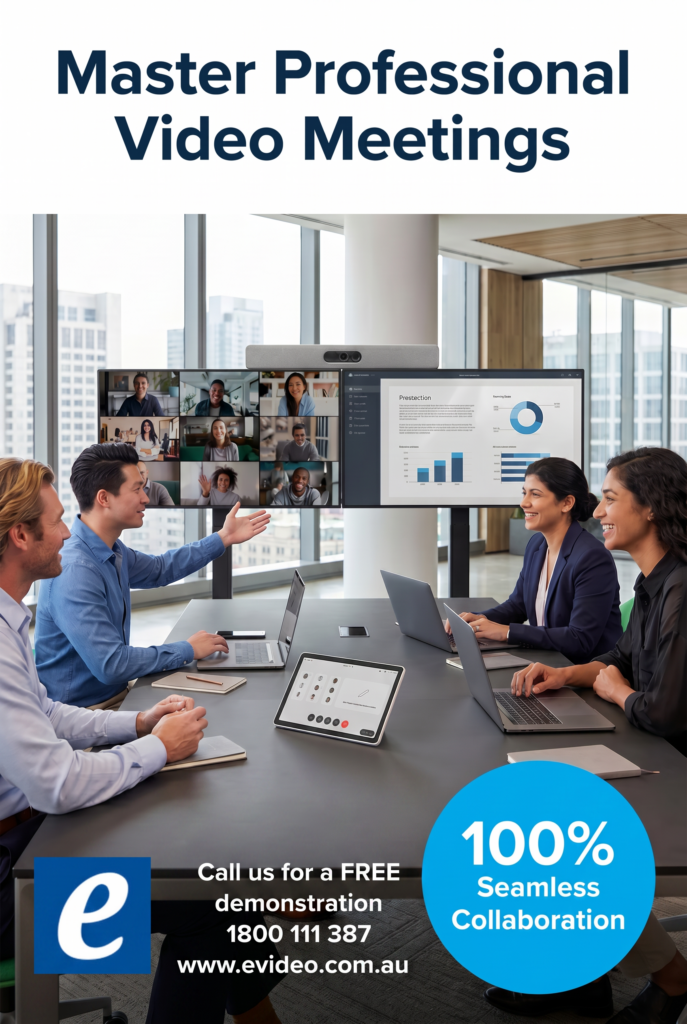
Master Professional Video meetings

eVideo will help you to master video calls which come down to controlling your environment, optimizing your hardware, and engaging professionally.


Call us on 1800 111 387 for a consultation regarding your project or Visit us at www.evideo.com.au/
#evideo #e365

Logitech Sight AI powered table top camera

Logitech Sight AI powered table top camera The AI powered table top camera

Help remote employees get the best perspective in every hybrid meeting with Logitech Sight. This AI-powered tabletop camera works hand in hand with Logitech Rally Bar or Rally Bar Mini to capture, identify and present virtual meeting attendees with the best sound and view of the meeting room action.

Compatible with leading video platforms:

Sight helps remote meeting participants see and hear everyone perfectly, so they feel like they’re actually seated at the table rather than sideline observers.

Working together with Rally Bar or Rally Bar Mini at the front of the room, Sight sits on the table and uses audio and video to intelligently detect, frame and present participants around the table.

By integrating with the leading video conferencing platforms like Microsoft Teams, Zoom, and Google Meet, Sight enhances the hybrid meeting experience by providing more dynamic and inclusive views of the meeting room action.

Two viewpoints for better perspective
Compatible with Rally Bar and Rally Bar Mini. Sight works with the front of room camera to detect conversations, capture audio and video, and present the best view of active speakers to remote participants.

Neat Bar Pro & Sony 65 inch TV

Neat Bar Pro & Sony 65 inch TV-1 Year standard Warranty-Authorised Australian Pro Dealer Stress FREE Installation

Neat Bar Pro & Neat Pad-1 Year standard Warranty-with 65 inch Sony Commercial TV-Authorised Australian Pro Dealer Stress FREE Installation

Installation and integration Australia Wide 

Neat Bar Pro is a simple and elegant, compactly designed yet highly capable meeting room device. It’s perfect for bringing superior-quality audio and video to your meeting, huddle or focus rooms for up to ten people. You can mount Neat Bar above or below one or two monitors, and it comes with Neat Pad, our dynamic touch screen, which you can configure as a controller or scheduler.

BYOD Video Conferencing – But Without the Wires

BYOD Video Conferencing – But Without the Wires

BYOD conferencing enables the user to host video calls on whatever platform they choose from their laptop. To achieve this they need to access the room audio and video hardware to enable groups to conference with remote participants. Room systems, such as Microsoft Teams Room (MTR) systems allow users access without the need to connect a host computer. However, room solutions tend to be tied in to a single platform such as Teams. Smaller room systems will generally either have a videobar design with integrated camera and microphones onboard. They tend to use an Android operating system. Larger systems include a dedicated Windows room computer such as an Intel NUC. Most of these room solutions do have the option making calls on other conferencing platforms, but only by connecting a wired host computer.

What many users want is the platform agnostic and familiarity of a BYOD solution, without the wires. This is exactly what the new ScreenBeam Conference offers. ScreenBeam Conference is free software solution to users of the ScreenBeam 1100 Plus. It adds wireless connectivity to room cameras, microphones and speakers. Support for native wireless display protocols means users can wirelessly present from any device without having to install and maintain an application, or use a dongle or cable. On Windows devices Screenbeam uses Miracast to connect, on Apple Devices it uses AirPlay. There is also support on Chromebook or from Chrome browsers using GoogleCast. Support for iOS means you can even use an iPad or a mobile phone to host your conference calls.

Benefits of Wireless Content Sharing

ScreenBeam brings a whole host of other benefits, aside from getting rid of that cable from the host computer to the conferencing hardware. Wirelessly sharing content into meetings is a breeze with Multi-View enabling up to four users to share content. With the Quick Switch mode enabling you to effortlessly switch the presenter from one user to another. 

The benefits of the ScreenBeam 1100 Plus go far beyond the wireless conference feature. For internal meetings and training sessions users can wirelessly share and mark-up content on the room display. They can do so without first downloading an app, or finding the right dongle or cable. ScreenBeam connects simultaneously to both internal and guest networks simultaneously without compromising security. The ScreenBeam 1100 Plus also supports digital signage. Therefore idle displays in conference and other meeting rooms can be employed to transmit employee and guest communications. It does this with integrated HTML-based digital signage capability.

Contact us on 1800 111 387 

NEW Dten available in 55-inch and 75-inch models

DTEN D7X 55-inch and 75-inch models

The all-in-one DTEN D7X transforms every meeting room into a modern workspace. Its powerful deep learning capabilities and AI features enable it to ensure great video collaboration experiences for your team, even without any user intervention. The D7X is also unique because of its enhanced compute capabilities, which enable it to perform multiple tasks at the same time and make sure that they are all run smoothly and efficiently.

With DTEN D7X, you can quickly connect any laptop to a single USB-C cable and start your video meeting. DTEN D7X features upgraded speakers, camera and microphones to create an enterprise ready professional meeting experience. It comes with Zoom and Microsoft Teams (via a free software download) so that you can join Zoom or Microsoft Teams calls on demand.

Listen up. Hear everything crystal clear with the new DTEN D7X 75″, a flexible, interactive display that’s as versatile as it is powerful. With state-of-the-art AI technology, it works with your team to optimize sound so each person can be heard, even in larger rooms like boardrooms. The upgraded speaker system features four times more sound and four new microphones ensure your quieter voices are picked up loud and clear.

The Future of Work

The Future of Work

The Future of Work | Have you got the best videoconferencing solution?
The world has changed. We’ve never used so much video, at home and at work. But in the rush to get teams working remotely, have you ended up with the best solution?

As hybrid work transforms into anywhere work, collaboration and employee experience goals continue to evolve. Work and learning spaces are changing to meet team expectations, and your technology must keep pace, with equal attention given to remote and on-site experiences. In short, we need to make anywhere work more
human-centric.

We have insights into strengthening the human experience in the workplace, including:

  • Our human-centric workplace how-to guide
  • Immersive spaces, platform interoperability, and VR design
  • In-person collaboration and events case study
  • Hybrid learning environments
  • Experience technology that moves the world
  • Technology partner solutions

Latest April Product Releases (Videoconferencing Equipment)

Latest April Product Releases (Videoconferencing Equipment)

Picture of e365 Superstore

e365 Superstore

Latest Product Announcements

The videoconferencing industry has grown exponentially and with numerous tools coming out every month, this will only continue to improve. We have compiled a list of the most useful videoconferencing equipment out there this month. 

Overview

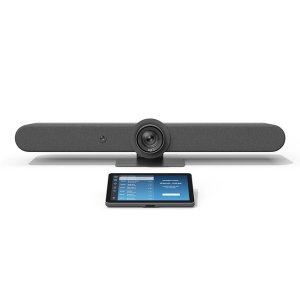
Logitech Rally Bar + TAP IP- Medium- Graphite

Logitech Rally Bar + TAP IP- Medium- Graphite e365 SuperStore are a premier authorised Logitech gold partner with Australian stock and warranty Logitech Rally bar are a Powerful All-in-one Video Conferencing Bar with Brilliant Optics and Automated PTZ. All-in-one Video Bar for Midsize Rooms. Simple to Set and Easy to Use. Only Quality Products. Trusted Australian Vendor. Friendly Customer Service. No Credit Card surcharge. Logitech Tap and Tap IP Compatibility Information  

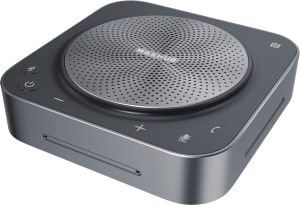
MaxHub Bluetooth Speakerphone UC BM35

MaxHub Bluetooth Speakerphone BM35 Unlock a new level of meeting clarity with the next-generation BM35 speakerphone. Crystal clear audio combines with a powerful pick-range to transform any small to mid-sized meeting space. Break free from the restrictions of wired devices with an agile, flexible solution that adapts as quickly as your team. 

In the home, the business office, or anywhere else, the BM35 is the ultimate part for clear conversations. Comes with 3 year warranty. Amplify Conference Quality with Superior Sound Portability and practicality come together in a powerful audio device, built for better meetings. The BM35 is optimized to keep human voices clear. Capturing every utterance in perfect detail, the BM35 empowers any team.

AVER CAM570 4K DUAL LENS PTZ AUDIO TRACKING CAMERA Stress FREE Installation

AVER CAM570 4K DUAL LENS PTZ AUDIO TRACKING CAMERA AVer CAM570 is a 4K dual lens camera with a 36X Total zoom PTZ camera and a second AI lens with 95˚FOV. Equipped with a built in microphone, CAM570 detects human voices up to 10M and offers audio tracking function. AI technology such as Smart Gallery and gesture control can capture every attendee up-close with premium video quality. 

Built-in Microphone Enables Audio Tracking Easily focus on active speaker with audio tracking mode and presentation mode. The camera will follow the speaker automatically or you can set up a preset point to focus on a specific area. The built in microphone picks up human voices up to 10M without being disturbed by a local speaker.

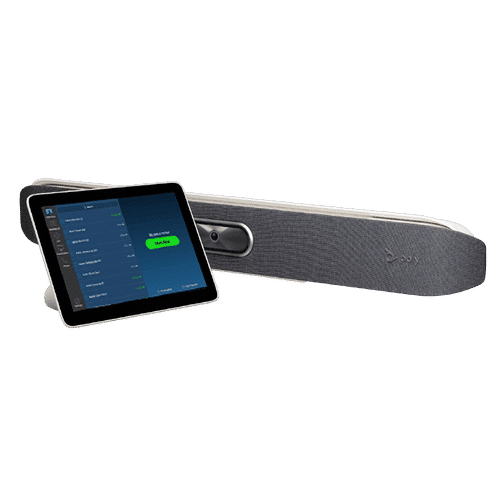
POLY Studio X50 & Poly TC8 4K Video Conf System W 3yr Poly Plus 24x7 Support

Poly studio X50

Poly Studio X50 with touch panel TC8 connects to Microsoft Teams and Zoom The Poly Studio X50 video bar delivers radical simplicity in a small, elegant package. In small- and medium-sized rooms, connect easily with whatever video collaboration software you may use. Experience full boardroom-quality audio, advanced camera capabilities, and quick wireless content—all in one sleek video bar. 

And say goodbye to unnecessary pucks, cords, and cables, along with the PC or Mac to drive the meeting, since the Poly Video OS runs the show. Easy to install, easy to manage. • Ideal for rooms of up to 8 participants • Surround everyone with the rich, legendary sound with stereo speakers that deliver immersive, room-filling audio • Dual monitor support ensures you have the ideal setup for room of many sizes • Be heard clearly with next generation microphone array

DTEN ME 27 All in One Zoom device

DTEN ME 27 All-in-One Personal Collaboration device for Zoom DTEN ME – the ideal solution for working from home Combining the technology in the DTEN ME with loom’s enterprise-quality software delivers the ideal solution for the home office. Simply login with your Zoom user account and create an instant office experience without any additional licenses. 

This solution integrates Zoom Meetings, phone calling, whiteboarding and annotation in a 27 multi-touch display built for the desktop. It is designed to keep your work­space clutter free and organized to deliver a professional meeting experience.

CommBox - Elegance XL Cart

CommBox – Elegance XL Cart Understatedly stylish fixed-height mobile stand with a pen shelf and designer hubless lockable castors. The cart suits CommBox screens up to 110″. Other features include 3″ heavy-duty locking castors and a handy pen and equipment shelf.

Maxhub v6 Collaboration Display - Maxhub C7530

Maxhub C5530

Maxhub v6 Collaboration Display – Maxhub C7530 Maxhub C7530 v6 Classic Series Maxhub C7530 The Maxhub C7530 – Integrating professional video conferencing, seamless screen-sharing, advanced whiteboard technology, and a brilliant audiovisual experience, is the ultimate corporate-collaboration assistant. 

Drive productive teamwork and increase organizational efficiency with this meeting-room must-have. Installation and Integration Australia Wide Total Solution, Minimal Setup – Maxhub C7530 A complete, seamless design fulfills every meeting requirement, including built-in camera, mic, and touch panel. Whether video conferencing or hosting a local discussion, it’s as easy as plugging in your power cable.

Cisco Webex 8875 IP Phone - Corded - Corded - Wi-Fi, Bluetooth - Desktop - Carbon Black - VoIP - IEEE 802.11a/b/g/n/ac - 2 x Network (RJ-45) - PoE Port

Cisco Webex 8875 IP Phone – Corded – Corded – Wi-Fi, Bluetooth – Desktop – Carbon Black – VoIP – IEEE 802.11a/b/g/n/ac – 2 x Network (RJ-45) – PoE Port CP-8875-K9= Webex 8875 IP Phone – Corded – Corded – Wi-Fi, Bluetooth – Desktop – Carbon Black Webex 8875 IP Phone – Corded – Corded – Wi-Fi, Bluetooth – Desktop – Carbon Black – VoIP – IEEE 802.11a/b/g/n/ac – 2 x Network (RJ-45) – PoE Ports Enjoy superior voice communications while retaining the convenience and user-friendliness over Internet Uses VoIP technology to transfer audio signals over the Internet while circumventing high toll charges by telephone companies

Yealink MeetingBoard 86 inch for MS Teams

Yealink MeetingBoard 86 inch Collaboration Display For Microsoft Teams e365 SuperStore are a premier authorised Yealink Platinum partner with Australian stock and warranty Simple to Set and Easy to Use. Only Quality Products. Trusted Australian Vendor, Many Payment options, Same Day Delivery, Friendly Customer Service. 

No Credit Card surcharge. (stand available separately) Unlock Creative Teamwork The Yealink Meeting Board collaboration display effectively facilitates powerful digital collaboration by combining everything in the room, from the computing unit to a wide 86-inch touchscreen display, 4K camera, microphones arrays, speakers, and built-in Microsoft Teams. The Android 10 OS and an Octa-core high-performance chipset offer maximum performance.

Facebook
Twitter
LinkedIn
Picture of e365 Superstore

e365 Superstore

e365 Superstore are experts in video conferencing equipment. We have completed thousands of projects over the last 25 years and we are passionate about virtual communications. Click here to find out more about our company.

Don’t Email me, Video Me!

Hate email?

If you’re in the corporate world, chances are you have an affliction like I do. Five hundred emails, 24 hours a day, two means — portable devices and your desktop — to receive them. Email has effectively beaten the telephone as a preferred way to communicate. And if you think I’m exaggerating, consider this: Intel recently noted that in exactly one minute’s time, more than 204 million emails are sent. That means more than 12 billion emails land at their destination within an hour!

Email may currently be our number one means of communication, but it is flawed. The world of email has become impersonal and sometimes even hostile. How many of us have received the dreaded “all caps” emails where you can feel the sender screaming through your screen? Often people seem too comfortable saying things in an email that they would likely never say in person or via live video.

And, while email ensures that we are in constant contact with colleagues and clients, for just some of the reasons I’ve just stated, it doesn’t necessarily mean it is better.

We’re a mobile business force — one that enjoys the comforts of a work-anywhere lifestyle, whether from the train, the back porch, you name it. And our consumer technology like virtual meetings, video conferencing and other telecommuting technology allows us to do this. We also rely heavily on social media platforms — ones with video chats, picture exchanges, and 140 characters that tell the whole story. So while just eight percent of the workforce is using these tools currently, this is the future of collaboration.

We see it every day in the way our future workforce — teenagers — keep in touch. It isn’t through email or voicemail, its Snapchat, Instagram and Whatsapp. The younger generation uses video daily in their communications, suggesting that today’s CIO needs to be thinking about opening up the corporate intranet for such video collaboration that is device and technology agnostic. Not only is it the future, it’s good for business and promotes global teamwork.

As video collaboration becomes more mainstream how global companies connect offices will impact mobility in a whole different way.  our government is expected to reduce its travel costs by 50 percent across agencies. Why shouldn’t video conferencing tools encourage enterprises across industries to follow suit? And, while some are currently connecting on devices tethered to their desks, the world is becoming more mobile. Major Telephony companies see the mobile market at 6.4 billion subscribers and 50 percent of those are smart phones. With those numbers only expected to grow, more devices will enter the market with video capability — leaving video as the major contribution to mobile data traffic by 2022.

With most consumers buying mobile devices for their bigger screens and HD video capability how can CIOs replicate quality consumer experiences and ensure employees have what they need to be successful?

They’ve tried. Believe me. But one of the biggest obstacles to integrating an employee’s workflow — and making it more of the consumer experience they desire – is the use of proprietary solutions.

For the last 20 years, we’ve seen different communication channels – everything from telephony and instant messages to the email and voicemail we get today. We’ve made improvements, but we often bind ourselves because of separate platforms that cannot co-exist. Proprietary technology is costly, often not scalable and thus, IT departments cannot make it customized for their needs.

My suggestion? Let’s open it up! Cloud Videoconferencing — offers CIOs and employees an option that appears to be traditional video conferencing without being tethered to a desk or platform.

Phone calls are a thing of the past. And I would wager email is on its heels. We’re on video now. We’re on social media now. It’s a multimedia, multiplatform, multi-device world.

Today is already tomorrow; video and social media use — most prominent already in the consumer industry- – will become as natural as picking up the phone or sending an email thanks to increased use of Cloud Videoconferencing. And that’s good news. Now if you’ll excuse me, I need to respond to the 147 emails I’ve received while writing this…


Determine Your Video Conferencing Requirements with These Questions

logo

Integrating video conferencing into your organization is quickly becoming essential. However, a top quality video conferencing system can be expensive. Therefore, in preparation for deciding on a provider, and choosing a plan for your company, it is well advised that you define your video conferencing requirements well before you begin to draft any contracts with vendors.

The following list should help you narrow down which types of video conferencing systems and equipment you should consider adopting when moving forward with your purchase. Make sure you consult both your management and IT departments in order to cover all bases.

There are three broad areas you should take a look at with regards to your video solutions.

The first is business requirements – the direct business goals that video conferencing should be looking to facilitate.
Next, there are functional requirements; specific details such as number or users and/or overall functionality that feed back into the business goals.
The final requirements to consider are technical. This may include any limitations you have in regards to space, systems, and bandwidth. Take advantage of the deep knowledge your IT team has in these areas before moving forward. Then ask yourself the following:
What is your organization looking to achieve with video conferencing solutions?

This is first and foremost the most important question you must ask before going forward with a video conferencing solution. The wider strategy your team outlines will be a fundamental help in determining the type of video conferencing solution you choose.

What is your budget for video conferencing solutions?

Your budget should be determined by assessing how valuable the solution will be to your operations. In addition, look at where the solution will reduce costs and improve productivity i.e. travel costs, scaling knowledge, connecting remote workers etc.

How many users does your video conferencing system expect to support?

Knowing how many users your organization will have can help you with issues such as bandwidth and pricing plans. However, knowing how much you are likely to grow in the future is just as important.

Where will your users be located?

Will your users be based in the main office or will they be remote? Remember to look to align your bring-your-own-device (BYOD) strategy with the solution to make it simpler for remote workers. Also, look at how many meeting rooms you wish to convert into video conferencing suites and, of course, don’t forget to look at all of your office and subsidiary locations.

Do you have in-house IT support or will you need to outsource?

Most vendors should be able to offer you IT support, though this will be at an extra charge. If you are fortunate enough to have onsite IT staff members, they must familiarize themselves with the solution.

Cloud or on premise video conferencing?

It’s not just applications and storage that are offered from the cloud, it is now possible to dispense with expensive video network infrastructure and have video conferencing and calling delivered as a service. This option is by far the most scalable and affordable. In very few cases, organizations prefer to have on premise infrastructure deployed behind firewalls. Therefore, engage with your IT to understand the pros and cons of both environments.
When you are going to implement a video system, follow these questions and assess your business goals to find a video conferencing solution that best suits your company.

At eVideo, we have a complete range of cloud video conferencing services and a portfolio of hardware for meeting rooms systems and software for desktop and mobile devices.

To find out more visit us at www.evideo.com.au   or 1800 11 387

Sydney | Melbourne | Gold Coast | Brisbane| Canberra | Adelaide| Perth


Huddle Rooms and Cloud Videoconferencing

Make Your Business More Productive, with Huddle Room Equipment, Products and Software

If you haven’t been seeing the productivity you want out of your employees and your business as a whole, consider that the layout and design of your office space might be to blame. In recent years, many companies have started trying to innovate their office designs to pursue the look and feel of a modern office.

In many cases, this idea of a ‘modern office’ results in an open concept design where most employees work side by side or across from one another, clustered together in one big main room. Maybe there are a few standalone offices for senior members of the staff, or a few conference rooms for meetings, job interviews and the like. For the most part, though, the office is designed as an open floor plan.

The Problems with the Modern Office Layout

There are two core problems with this kind of office design, and you can solve both of them (at least partially) by investing in huddle room equipment for your business.

The first issue is that open workspaces, while they can drive collaboration and promote a teamwork mentality, can also create loud, distracting environments where very little actual ‘work’ gets done. There is too much chaos and not enough direction.

The second issue, meanwhile, is that the office’s open concept design means that there aren’t many other rooms for team meetings or collaboration sessions. There are a couple of larger conference rooms or boardrooms, but those are intended for more important meetings—not for gatherings of smaller teams or segmented departments.

huddleroom1

The Benefits of Using Huddle Room Equipment

Investing in huddle room products is an effective way of reversing these negative impacts of an open concept office. Huddle rooms are smaller rooms in an office space that act as less formal conference rooms. They are maybe the size of a traditional office but come equipped with key electronics and software to allow for video conferencing, Power Point presentations, idea brainstorming and more. Best of all, the size of these rooms makes them perfect for smaller group meetings.

Having huddle room equipment and software in your office helps restore the sense of collaboration often lost amidst the madness of an open floor plan office. When your individual teams can regularly go into smaller rooms to have meetings or conversations, it removes some of the noise and chaos from the central work area. It also keeps the conference rooms and boardrooms open, available for larger gatherings.

Because huddle rooms are smaller than standard conference rooms, they cost less to outfit with key technology and software products. As a result, turning three or four smaller rooms or offices throughout your workspace into huddle rooms might be more affordable than you realise.

At eVideo Communications, we specialise in huddle room equipment and huddle room software in Australia. We can help you design and implement a huddle room strategy in your office. We predict you will start noticing the benefits right away.

To start collaborating with the eVideo team, call us today on 1800 111 387

Ultimate guide to Zoom-Microsoft Teams room solution.

Face-to-face interaction is critical in business communications but teams are becoming increasingly dispersed. The Video Conferencing systems on the market now are designed with smaller huddle rooms in mind

Our Team are

  • Highly experienced Unified Communications, Videoconferencing, Collaboration Solutions Specialized
  • Offer a consultative approach
  • Highest product and application knowledge
  • Totally technically proficient
  • Superior level of networking competency, service, support & customer satisfaction

Our Video/Audio/IP telephony/Unified Communications solutions include:

  • Cisco, Logitech, Crestron, Poly, Yealink  Video Conferencing endpoints for Meeting Rooms, Cloud, On-premise and Hybrid Solutions, Microsoft Teams, Zoom, Google meet.
  • Integrate your Boardroom solutions
  • Professional services, Managed Services.
  • Audio Visual solutions (Touch boards, Projectors, Trolleys etc.)

Please let me know if you would like one of our team to discuss with you and  provide the latest Communication solutions you and your organisation.

Microsoft Surface Hub 2S-85″

Microsoft Surface Hub 2S-85 Inch

Move beyond meetings to true team flow

Brainstorm together in Microsoft Whiteboard, and collaborate across devices. Project wirelessly to share content with Miracast, and sign in to access Office 365 files.

Team collaboration fuelled by Windows 10

Enjoy the power of a fully integrated Windows 10 device designed for teams. All-in-one Surface Hub 2S natively runs your must-have Microsoft apps, including Microsoft Edge and Office,2 and your essential business apps. Incredibly high resolution and amazing graphics performance deliver vibrant, crisp, and clear images and video on the thin, light 50” display.

Design a collaborative culture at work

Increase innovation, employees’ skills, and remote teams’ efficiency with a culture of collaboration. Create it with flexible workspaces and the right technology.

Microsoft accessories for Surface Hub 2

Built to enhance your Surface Hub 2S experience,  camera and pen are included in every box, and help your teams best express themselves.

Choose from a stand or wall mount (not included).

Pricing based on Microsoft registration agreement

Order on line from e365 Distribution the Logitech Rally Bar

Logitech Rally Bar

Powerful All-in-one Video Conferencing bar with Brilliant Optics and Automated PTZ.

All-in-one Video bar for Midsize Rooms. Simple to Set and Easy to Use.

Only Quality Products from e365. Award winning Logitech Australian partner with Australia-Wide offices.

Award winning Customer support & Service. No Credit Card surcharge.

We Specialize in Both Cloud-Based and On-Premise Technologies.

  •  24/7 Help Desk *     Maintenance and support options
  •  Australia-Wide installations  Onsite support & Training *
  •  Offices in Sydney-Melbourne-Brisbane-Gold Coast-Perth-Adelaide-Canberra.
  •  Free demonstrations & Trials * Video chat consultancy
  •  Customer Promotions & Loyalty Program
  •  Special discounts for Health, Education, Government & Non for profit.

*Subject to conditions and vendors.


What is a MUST to include Todays latest Visual technology.

eVideo communications 

Video Conferencing and high-impact audio-visual technology is the Answer.

Today’s organizations thrive in a creative, agile and responsive working environment, where people want to engage with each other in real time – wherever they are.

Our forward thinking customers require not only specific technology, but innovation, transformation and a cultural shift towards a new way of delivering, and interacting with, information.

Implementing this type of environment can prove to be challenging due to the complexity and financial requirements of a flexible Workspace.

Business Benefit

Working environments are no longer standalone rooms with simple display screens or a flipchart. They are areas where we collaborate to create an environment where people can deliver more value to the business.

Business benefits include tangible cost savings, savings in time and office space, along with increased engagement. Video Conferencing and VCaaS (Cloud) reduces complexity of multi-manufacturer video equipment and make booking a VC as easy as a meeting, driving utilization.

Today we demand interaction and collaboration tools that engage with our customers, staff, partners etc. that provides a multi-layered experience and brand awareness.

Boardroom Management, potentially linked to room integration, automates the environment for whatever type of meeting is taking place.

Tangible Savings

We help you transform your business through the implementation of innovative audio-visual and video solutions with the ability to achieve tangible cost savings or drive customer engagement.

Virtual teams enable collaborative working, increasing the efficiency of your business and reducing the time to market.

More and more businesses are using digital signage as part of their communications and information strategy. Deployed in prominent areas such as receptions, staff restaurants, office spaces, digital signage enables engaging, dynamic and tailored content.

Video Walls and large format screens are becoming common, centrally controlled and distributed across a geographically dispersed estate.

Our Capability

Our team works closely with customers to design and implement a variety of technology solutions, including:

  • Video Conferencing – Our Professional Services team of consultants, project managers, engineers and support operatives integrate existing Videoconferencing or deploy additional endpoints.
  • VCaaS – Hosted Virtual Meeting Rooms provide access video endpoints, along with software based systems such as Microsoft Lync, to a single Video meeting room. Additionally we provide concierge service and video eCare helpdesk to assist with setup, activation and troubleshooting.
  • Audio – Boardrooms, Meeting Rooms, Huddle rooms, Executive offices.
  • Digital Signage – Enabling the projection of brand messaging, information and targeted adverts using a series of media displays or video walls;
  • Control Systems – Including LCD displays, projectors, videoconferencing systems, lighting.
  • Display – Projectors, LCD, LED and plasma displays can be used in a wide range of environments, from corporate board rooms, meeting rooms, command and control centers;


We are leading the way in  providing a focus on design, implementation and management of Video Conferencing and high-impact audio-visual technology throughout Australia and Globally enabling our customers to be ahead of their competitors.


We’ve been named as Yealink’s Premier Partner

We’ve been named the Premier Partner of Yealink –

Tom Morgan CEO and Managing Director has recently  signed an agreement with Yealink a leading Telecom-Unified communications global organisation to become premier partners in business.

Our partnership with Yealink allows eVideo Communications to be a leader Australia-wide and Global advanced features of Yealink’s industry-leading technologies.

eVideo Communications  offers our customers a wide range of products.  We are a professional organisation that can provide installation and consultation of our products.

eVideo Communications has been in business for over 23 years offering products and solutions to our customers.

Channel manager of Yealink, Brandon Zhou is most happy to be part of this agreement


Logitech Rally Bar

Logitech Rally Bar

Connect via USB to virtually any PC or Mac with no additional software needed.

LOOKS BRILLIANT

Upgrade the meeting experience with cinema-quality video, outstanding color, and exceptional optical accuracy.

SOUNDS AWESOME

Rally Bar’s advanced audio engineering delivers powerful, room-filling sound and makes sure every voice is clearly heard.

EXPAND THE CONVERSATION

Easily accommodate larger groups and spaces, starting with a 4.6 m mic pickup range (varies by environment) and the option to extend up to three Rally mic pods.

SUPER SMART

Keep the focus on meeting participants with AI Viewfinder, which uses scene awareness to optimize RightSight auto-framing and camera control.

Also available in bundles with TAP screen.

Also bundles with Heckler trolleys

Stock Going Fast !

TIPS AND ADVICE ON SUCCESSFUL VIDEOCONFERENCING

how to conference

Adjust your camera appropriately, try to fill the screen as much as possible with people rather than with the table, chairs, walls or the floor

Place the microphone in the centre of the group, preferably on a soft surface, eg mouse mat or thick book; this will help absorb some surface noise.

Avoid tapping on the microphone and rustling papers near the microphone – this noise will be very loud at the remote site(s). (This also applies for tapping pens on desks, rattling cups and saucers and chairs bumping into table).

Avoid covering the microphone with documents, laptop covers etc – this will mute the sound and remote site(s) will not hear speaker.

Mute the microphone before moving it so that the remote site(s) doesn’t hear you moving it.

Speak in your normal voice without shouting and use natural gestures.

There is no such thing as a private conversation during videoconferencing – the microphone is very sensitive and will pick up any whispering so avoid any side conversation and ensure that only one person speaks at any one time.

Press mute button if you require privacy.

If more than three people in meeting, nominate a lead person to manage the videoconference. This lead person should control the camera, microphone and ensure smooth running of the videoconference

Once connection has been made lead person should Introduce themselves and ask remote site(s) if they can see and hear you.

Confirm that you can hear and see remote site(s).

On commencement of videoconferencing meeting all participants should be asked to introduce themselves – if participants are unknown to each other, then it is helpful to raise your hand during your introduction so that remote site can recognize who is speaking.

Sometimes there may be a slight delay between site(s), consider pausing briefly for others to answer you or to make comments

As with any meeting, try to limit side conversations and ensure that only one person speaks at any one time

During multipoint calls, lead person should ask sites to select mute when not speaking.

During multipoint calls, lead person should ensure that all sites are given the opportunity to participate or ask questions before moving on to each agenda item. This will ensure involvement of all sites.

Arrive promptly for videoconference meetings. Doors opening and closing and chairs being moved once meeting has started is distracting.

If you have to leave the meeting, ask the lead person to announce that you are leaving.

If point to point call, agree beforehand who is making the call and likewise at end of meeting agree who will be hanging up the call.

Security

  • Do not leave videoconferencing equipment unattended or “in conference” in locations that are isolated
  • Only videoconferencing with known and approved site(s)s and with location’s permission
  • Ensure the videoconferencing equipment is secure
  • Ensure room and content security, eg do not leave confidential information on whiteboards, documents etc which could be viewed by the subsequent videoconference held in the room.

Business Benefits of Video Conferencing

Video conferencing has come of age and is used in every industry. Recent developments in mobile devices and wireless networks have propelled further interest in being able to video information anytime, from anywhere. Generic applications of video conferencing are too numerous to mention. Any department of any organization where meetings take place—finance, engineering, human resources, manufacturing, marketing, product development, sales, training—is an appropriate place to use video conferencing to:

• Connect dispersed staff without travel
• Bring in remote experts for consultation or training
• Interview job candidates or witnesses
• Make a presentation to a vendor or customer
• View data and presentations on an on-demand or real-time basis
• Receive information at any time or place


The use of video conferencing has the potential to increase productivity and efficiency by reducing unproductive travel time, preventing meeting delays, creating shorter and more structured meetings and allowing for greater reach of a message. Video conferencing also allows for an increased number of participants. It is often difficult to get information to everyone at the same time, but with video conferencing, all individuals who need data can get the information when it is easiest for them.

BENEFITS:

The initial perceived and quantifiable benefit of video conferencing was reduction in travel costs. Initially, many organizations paid for the deployment of video conferencing with the reduction in travel budgets. While travel savings have been a recognizable benefit of video conferencing, there are many more qualitative benefits. Three
other major benefits of video conferencing are increased productivity and efficiency, improved management communications and enhanced business opportunities.

INCREASED PRODUCTIVITY AND EFFICIENCY

• Reduced travel risk
• Reduced unproductive travel time
• Prevented meeting delays
• Shorter meetings
• Structured meetings
• Larger participation
• Optimize attendance
• Immediate information exchange
• Faster response
• Access to experts
• Time-share scarce talent
• Quicker decisions

IMPROVED MANAGEMENT COMMUNICATIONS

• More interface at all levels
• Increased flexibility


ENHANCED BUSINESS OPPORTUNITIES

• Customer service
• Competitive advantage


Generic Applications

The top four applications in which video conferencing is used are:

• Management meetings
• Sales and marketing meetings
• Engineering, manufacturing, or production
• Training

This does not preclude other groups from using the technology (i.e., the HR department, the legal department, finance, etc.), but studies conducted by Telemanagement Resources International Inc. (TRI) have shown that the primary reasons that firms install video conferencing relate to the top four applications noted above.

Video conferencing has also been used for a variety of other applications, including product demonstrations to new customers, “town hall” type meetings and HR training. Given the longevity of video conferencing usage, all industries have developed useful applications for video conferencing. It is no longer a matter of if you will use video conferencing; it is only a matter of when.


Conclusion

Video conferencing provides tangible benefits to any organization. Devices that can handle video now range from handheld devices (i.e., phones and tablets) to high-end conference rooms. The technology is easier to use, cost is no longer an issue and connectivity happens almost anywhere. Video conferencing improves the way we work and provides us more time to spend with our family and friends.


e365 Distribution October BIG Discounts

e365 Distribution has the latest BYOD Collaboration solutions for your Home Office, Huddle room and meeting rooms

Special pricing  is limited till 31st October

  1. Logitech Tap,Rally
  2. Poly Studio X30-X50
  3. Yealink MVC 800
  4. Cisco Room Kit Mini
  5. Crestron MX150 
  6. Headsets
  7. Smartboards from Hitachi, Maxhub ,Samsung, Commbox, Avocor,NEC,LG,Viewsonic & more
  8. Trolley’s, Home office furniture 
  9. Dten Smartboard & Videoconferencing.


e365 provide a Installation, Support and help desk.

 e365 has the most brands in Australia and most are in stock ready for delivery Australia-Wide

Black Friday sale

Black Friday discounts have started early at e365 Distribution online Collaboration web site www.e365.com.au  

 If you are looking for some big discounts for

  • LED’s screens
  • Smartboards
  • Videoconferencing solutions (Cisco, Poly, Crestron, Zoom, MS Teams )
  • Headsets
  • VoIP phones
  • Cloud Video/Voice services
  • Conference phones
  • Projectors
  • LED trolleys etc.

e365 has the most brands in Australia and most are in stock ready for delivery Australia-Wide

(Black Friday-Special pricing ends close of business 29/11/2019)

eVideo connects Koppen Developments

eVideo connects the latest Cisco Room kit systems for Koppen Constructions. Their staff can now have visual and audio collaboration between North Queensland and Central Queensland offices as well customers.

Sign Up For Our Newsletter to Receive Regular Specials!