Videoconferencing Industry

Choosing a Video Conferencing Equipment Bundle

A meeting room can have a premium display, fast network connection, and a capable conferencing platform yet still deliver a poor experience if the camera misses half the table or the microphone picks up more air-conditioning than conversation. A properly specified video conferencing equipment bundle solves those gaps by bringing the core devices together as one compatible room solution.

For IT managers and procurement teams, the appeal is not simply convenience. Bundling can reduce compatibility risk, simplify purchasing, standardize the user experience across sites, and make support far easier after deployment. The right bundle also avoids a common expensive mistake: buying consumer-grade peripherals that work in a test call but fail under the demands of a busy boardroom, hybrid classroom, or shared meeting space.

What a Video Conferencing Equipment Bundle Should Include

At its most practical, a video conferencing equipment bundle combines the camera, audio hardware, compute or room controller, and display connection required to run meetings professionally. The exact configuration depends on room size, meeting platform, and how people use the space.

A small huddle room may only require an all-in-one video bar, a display, and a single USB connection to a laptop. A dedicated Microsoft Teams Rooms or Zoom Rooms space is more likely to need an appliance or compute unit, touch controller, camera, microphones, speakers, and commercial display. Larger rooms can add expansion microphones, a separate PTZ camera, a second display, wireless content sharing, and professional installation.

The best bundles are designed around a complete signal path. Participants need to be seen, heard, and able to share content without searching for cables, changing display inputs, or calling IT before every meeting. That is why the lowest initial hardware price is not always the best commercial outcome. A solution that reduces failed meetings, support tickets, and replacement purchases can offer much better long-term value.

Start With the Room, Not the Product Page

The room should drive the specification. Before comparing cameras or platforms, establish the table layout, room dimensions, typical attendee count, display location, lighting conditions, and whether users join from a dedicated room account or their own laptops.

Small rooms and huddle spaces

For spaces seating two to six people, an integrated video bar is often the most efficient option. These devices combine a wide-angle camera, microphones, and speakers in a compact unit. They reduce cabling and present a clean setup for rooms where the farthest participant is only a few feet from the device.

However, wide-angle does not automatically mean better. Extremely wide lenses can make faces at the end of a long table look distant, while low camera placement can create unflattering sightlines. Choose a bundle with framing features suited to the room and place the bar at an appropriate height below or above the display.

Medium conference rooms

Rooms seating six to 12 people often benefit from a more capable video bar or a modular system with a dedicated camera and table or ceiling microphones. Audio coverage becomes the critical factor here. The system needs to capture soft-spoken participants at the far end of the room while controlling echo and background noise.

For these rooms, consider whether the table shape, glass walls, and hard surfaces will affect acoustics. Expansion microphones may be a better investment than a higher-resolution camera if remote participants currently struggle to follow the discussion.

Boardrooms, training rooms, and divisible spaces

Large rooms demand a more deliberate design. A PTZ camera can frame speakers accurately from a distance, while multiple microphones or professionally installed audio coverage ensures every voice is captured. Dual displays are often worthwhile where teams need to view remote participants and shared content simultaneously.

This is also where installation and integration support matter most. Cable pathways, display mounting, network readiness, control systems, and room scheduling panels can all affect the final result. A bundle for a boardroom should be treated as a workplace technology project, not a carton of peripherals.

Choose the Platform Before Selecting the Hardware

A bundle should support the platform your organization actually uses, whether that is Microsoft Teams, Zoom, Google Meet, or a mixed environment. Platform-certified hardware gives buyers greater confidence that controls, updates, account management, and call features will work as intended.

Dedicated room systems are ideal for organizations that want walk-in, tap-to-join meetings. They provide a consistent experience and can be centrally managed across multiple locations. The trade-off is that they require room licenses, network configuration, and a clear ownership model for updates and support.

USB-based bundles remain a strong choice for flexible spaces and businesses where users host meetings from laptops. They can cost less and work with many conferencing applications, but the user experience depends on each person connecting their device correctly. For a high-turnover meeting room, that additional friction can quickly become a productivity issue.

Bring-your-own-device rooms can also be paired with wireless content sharing or a one-cable connection hub. This approach suits organizations with multiple conferencing platforms, but it should be tested against security policies, guest access requirements, and the range of laptops employees use.

Prioritize Audio Before Camera Resolution

Buyers often lead with 4K camera requirements. High resolution has value, particularly in larger rooms, but clear audio is usually the difference between a productive hybrid meeting and one where remote attendees disengage.

Look for microphones designed for the room’s coverage area and for audio processing features that manage echo, noise, and competing voices. In a small room, an integrated bar may be enough. In a long boardroom, microphone expansion and speaker placement should be assessed as part of the bundle, not added only after complaints begin.

Camera selection should then reflect room geometry. Consider field of view, optical versus digital zoom, framing modes, privacy shutters, and the ability to show a presenter at a whiteboard. A PTZ camera is useful when the camera must reach across a large room. In compact spaces, it may be unnecessary complexity compared with an intelligent video bar.

Standardization Makes Multi-Site Procurement Easier

Organizations with several offices, campuses, or meeting room types gain real value from standardizing their video conferencing equipment bundles. A consistent camera and controller experience reduces training needs. IT teams can hold fewer spare parts, document fewer support processes, and manage firmware updates more predictably.

Standardization does not mean forcing one bundle into every room. A better approach is to establish two or three approved room designs: huddle, standard meeting room, and large boardroom or training space. Each design can use the same platform and operating model while scaling camera, audio, and display requirements to fit the environment.

When comparing suppliers, ask whether they can quote these designs as repeatable packages. The ability to source recognized brands, maintain configuration consistency, and coordinate delivery across locations can remove a major procurement burden.

Check the Details That Cause Deployment Delays

A bundle can look complete on paper but still miss components needed for a working installation. Confirm display mounts, cables, adapters, network requirements, power access, and any required licenses or room accounts. If the system will be installed in a wall-mounted display area or table box, cable lengths and equipment placement need to be planned before the order is placed.

Also review warranty coverage, local support options, and the process for technical troubleshooting. For commercial environments, fast replacement pathways and qualified assistance are often more valuable than saving a small amount on an unsupported device.

For organizations buying in Australia, e365 SuperStore can support the process with competitive commercial quotes, recognized conferencing brands, Australia-wide delivery, and technical guidance for room-based deployments. That combination is particularly useful when procurement needs a single source for hardware supply and installation coordination.

Buy for the Meeting Experience You Want to Repeat

The right bundle is not the one with the longest specification sheet. It is the one that lets a first-time user enter a room, start a meeting quickly, hear every participant, share content clearly, and leave without creating a support ticket.

Specify the room experience first, match the bundle to the conferencing platform and acoustic needs, then validate the practical installation details. That process gives your teams a room they will choose to use, rather than another space with expensive technology sitting idle.

How to Standardize Meeting Room Technology

A meeting should not begin with someone hunting for the right cable, rebooting a room PC, or asking which remote controls the camera. That friction is exactly why organizations need to understand how to standardize meeting room technology. The goal is not to make every space identical. It is to make every room predictable: users know how to join, IT knows how to support it, and procurement knows what to buy next.

For multi-site businesses, education providers, and growing teams, standardization turns meeting technology from a collection of one-off purchases into an operational system. It reduces support tickets, shortens deployment time, strengthens security, and gives every employee a more consistent experience whether they are in a huddle room, training space, or executive boardroom.

Start With Room Types, Not Product Models

The most common mistake is choosing a preferred camera, display, or speakerphone before defining the rooms it must serve. A compact focus room has different requirements than a 14-seat boardroom. Trying to force one hardware bundle into every environment usually leads to poor camera framing, weak audio pickup, or unnecessary cost.

Create a small number of room profiles based on capacity, room shape, meeting behavior, and primary platform. For many organizations, three to five profiles are enough: personal or focus spaces, small huddle rooms, medium conference rooms, large boardrooms, and divisible training rooms.

Each profile should specify the expected experience rather than just a shopping list. Define how many people must be seen clearly, how far participants sit from the display, whether remote attendees need whiteboard visibility, and whether the room hosts presentations, hybrid training, or client-facing calls. This provides a sound basis for selecting conferencing cameras, microphones, commercial displays, touch controllers, and room scheduling panels.

A standardized room profile can still allow controlled variation. For example, a medium room may use the same Teams Rooms or Zoom Rooms platform across all locations while allowing a different camera model where a room is unusually long. The standard should guide exceptions, not deny that they exist.

Standardize the User Experience First

Users do not care whether a room uses USB, HDMI, IP audio, or appliance-based collaboration hardware. They care that the meeting starts on time. That means the experience at the table must be consistent across rooms.

Set a clear standard for joining meetings. If Microsoft Teams is the primary platform, a Teams Rooms interface may be the right default. If Zoom is the business standard, deploy Zoom Rooms where dedicated meeting controls and calendar integration are required. Organizations with mixed platforms may need approved BYOD options or interoperable room systems, but they should still make the preferred workflow obvious.

The same principle applies to content sharing. Choose a primary method, such as wired HDMI ingest, USB-C connectivity, wireless sharing, or native room-controller sharing, then repeat it wherever practical. A room that requires three different instructions depending on location is not standardized from the user’s perspective.

Keep controls simple. A touch panel should present the actions users need most: join, share, camera control when necessary, volume, and meeting end. Avoid programming complex AV control pages into everyday rooms unless the room genuinely needs them. Advanced control is appropriate for divisible spaces and executive training rooms, not for a four-person huddle space.

Build an Approved Technology Stack

Once room profiles and user workflows are defined, establish an approved stack for each profile. This is where IT, facilities, procurement, and AV stakeholders need to agree on more than the initial purchase price.

Your approved stack should cover the display, conferencing compute or appliance, camera, audio devices, controller, cabling, mounts, networking requirements, and any scheduling hardware. It should also specify supported firmware, warranty expectations, replacement procedures, and the accessories that make installation repeatable.

Selecting fewer strategic brands can simplify purchasing and support. It can also provide more consistent management tools and better opportunities for bundled pricing. However, limiting choice too aggressively can create risk if supply constraints emerge or a particular product is not suitable for an atypical room. The practical answer is usually to approve a primary solution and a compatible alternative for critical categories.

For example, one approved small-room kit might include an all-in-one video bar, a single display, and a touch controller. A medium-room kit may add a dedicated room system, dual displays, a PTZ camera, table microphones, and a content-sharing input. The important point is that both kits follow the same platform, support model, and installation principles.

Design for Audio Before Video

A premium camera cannot rescue a meeting where remote participants cannot hear the discussion. Audio should be assessed early, particularly in larger rooms, glass-walled spaces, rooms with hard surfaces, and training environments where speakers move around.

Start with room acoustics and microphone coverage. Measure the room, consider reverberation, identify HVAC noise, and map where people will sit or stand. An all-in-one video bar may be ideal for a small room, while a larger boardroom may need ceiling microphones, table microphones, DSP processing, and separate speakers.

Standardization does not mean using the same audio product everywhere. It means applying a repeatable design rule: every seat should be heard naturally, loudspeaker coverage should be even, and the system should avoid echoes and feedback. This approach prevents the costly rework that occurs when audio is treated as an accessory after the display and camera are already installed.

Make Manageability a Purchase Requirement

Meeting room technology must be manageable after deployment. A device that looks attractive in a quote but cannot be monitored, updated, or supported remotely becomes expensive over time.

Prioritize systems that provide centralized device management, health alerts, remote configuration, usage insights, and firmware update controls. IT teams should be able to see whether a room is offline, whether a peripheral has disconnected, and whether a software update has failed before a senior leadership meeting exposes the problem.

Network design matters just as much. Document VLAN requirements, Wi-Fi or wired network expectations, device authentication, firewall rules, and the process for adding rooms to the management portal. For environments with strict security controls, involve network and cybersecurity teams before hardware is ordered. Retrofitting network approval after installation is a reliable way to delay a rollout.

Create a Rollout Plan That Can Scale

Do not standardize an entire estate based on a spreadsheet alone. Start with pilot rooms that represent your most common use cases. Include a small room, a medium room, and at least one higher-complexity space if those rooms are part of the plan.

Use the pilot to test audio performance, meeting join workflows, cable lengths, furniture placement, user instructions, and device management. Ask real employees to use the rooms without technical assistance. If they struggle, the design needs adjustment before it is repeated at scale.

After the pilot, produce a deployment playbook covering site surveys, approved bills of materials, installation drawings, network prerequisites, acceptance testing, asset registration, and user handover. This gives internal teams and installation partners a consistent blueprint for every location.

For large rollouts, establish a refresh cycle at the same time. Meeting room technology should not remain in service until it fails. Plan for warranty periods, software support windows, expected room use, and platform changes. A scheduled refresh is easier to budget and far less disruptive than replacing failed devices room by room.

Give Procurement Control Without Slowing Teams Down

Standardization works when buyers can order approved solutions quickly without reopening every technical decision. Create pre-approved room bundles, clear configuration rules, and a process for exceptions. Procurement gains better price control and fewer incompatible purchases, while local teams get a faster path to a working room.

A specialist commercial technology supplier can help validate room designs, source compatible hardware, coordinate installation, and maintain consistency across a rollout. e365 SuperStore supports organizations with professional conferencing, audio, display, and collaboration equipment backed by technical guidance, competitive commercial pricing, and deployment support.

The best standardized meeting room is not the one with the longest specification. It is the room employees trust enough to walk into, tap join, share content, and get on with the conversation.

Choosing a Projector for Conference Room Use

A projector for conference room use is not a commodity purchase. It has to stay visible with lights on, connect quickly to the devices your team actually uses, and perform reliably when a client, executive, or remote participant is waiting. A low upfront price can become expensive fast if the image washes out, wireless sharing fails, or maintenance interrupts meetings.

The right choice starts with the room, not the product spec sheet. Screen size, ambient light, seating distance, video conferencing requirements, and installation constraints all determine which projector will deliver a professional result. For business buyers standardizing several spaces, those decisions also affect support workload, replacement planning, and total cost of ownership.

Start With the Conference Room, Not the Projector

Measure the usable presentation area before comparing models. A small huddle room may only need a 70-inch image, while a boardroom or training space may require 100 inches or more for spreadsheets, dashboards, and detailed presentations to remain readable from the back row.

Room lighting matters just as much. Conference rooms with blinds, controlled lighting, and darker finishes are easier to equip. Glass-walled rooms, open collaboration areas, and spaces where lights must remain on for note-taking need more brightness. Do not assume users will dim lights before every meeting. In most organizations, they will not.

Also consider the mounting position early. A ceiling-mounted projector can create a clean, permanent installation, but it requires the correct throw ratio and cable pathway. A short-throw model can work well in smaller rooms where the projector must sit close to the screen. Ultra-short-throw units reduce shadows and glare near the display surface, although they require careful alignment and a suitably flat screen or wall.

Match brightness to the way the room is used

Brightness is measured in ANSI lumens. It is one of the most meaningful specifications for a business projector, but more is not automatically better. Excess brightness can add cost and may be unnecessary in a controlled boardroom. Too little brightness, however, leaves presentations looking faded and forces users to close blinds or turn off lights.

As a practical starting point, a compact meeting room with moderate lighting may suit a projector in the 3,000 to 4,000 ANSI lumen range. Larger rooms, bright spaces, and rooms with substantial daylight often need 4,500 lumens or more. For training rooms or flexible commercial spaces, higher brightness can provide useful headroom when conditions change.

Brightness should be evaluated alongside screen size. The same projector that looks sharp on a 75-inch image may struggle when stretched across a 120-inch screen. Ask for recommendations based on the exact room dimensions and projected image size, rather than selecting on lumens alone.

Resolution Determines What People Can Read

Resolution affects more than video quality. In a business setting, it determines whether participants can read small text in a financial model, see details in a design review, or follow a shared application window during a hybrid meeting.

Full HD, or 1080p, remains a sensible option for many standard meeting rooms. It is cost-effective and handles presentations, video, and most collaboration tasks well. For boardrooms, large training rooms, and teams that frequently share dense spreadsheets or multiple windows, 4K is often the better investment. The extra pixel detail is particularly valuable when the projected image is large or viewers sit close to the screen.

Avoid treating native resolution and supported input resolution as the same thing. Some projectors accept a 4K signal but display it at a lower native resolution. That may be adequate for simple slides, but it is not equivalent to true 4K projection. Procurement teams should confirm the native display specification before comparing pricing.

Select the Right Light Source for Your Support Model

Lamp-based projectors can offer attractive purchase pricing, particularly where usage is limited. They also introduce a predictable maintenance requirement: lamps dim over time and eventually need replacement. That means downtime, consumables inventory, and service planning across multiple rooms.

Laser projectors have become the preferred option for many commercial deployments. Their light engines typically provide long operating life, consistent brightness over more hours, and faster start-up. The initial purchase cost is higher, but the reduced maintenance can make laser a stronger value over the life of the installation.

For a lightly used meeting room, a lamp model may still be commercially sound. For executive spaces, heavily booked rooms, education environments, and multi-site rollouts, laser technology usually reduces operational friction. The decision depends on projected hours of use, access to service personnel, and how disruptive a failure would be.

Connectivity Must Support Real Meeting Behavior

A projector can have excellent image performance and still frustrate users if sharing content is awkward. Start by identifying the devices and platforms in the room. A Windows laptop with HDMI has different requirements from a room built around USB-C laptops, wireless presentation, Microsoft Teams Rooms, Zoom Rooms, or a dedicated video conferencing appliance.

HDMI remains essential in most installations. USB-C connectivity can simplify modern laptop use, but verify whether the projector supports video input directly and whether charging is required through the same connection. In many room designs, a separate table connectivity hub or AV switcher provides a more reliable answer than relying on projector ports alone.

Wireless presentation is convenient for ad hoc meetings, yet it should be assessed carefully in managed networks. Security policies, guest access, Wi-Fi capacity, and device compatibility all influence the experience. A wired connection should remain available as a dependable fallback for high-stakes meetings.

If the projector will be paired with a conferencing camera, speakerphone, or room appliance, plan the full signal path. The projector is the visual endpoint, not the complete room solution. Proper integration ensures the room can switch between local content, remote participant views, and conferencing platforms without staff improvising with adapters.

Do not overlook audio and control

Built-in projector speakers may be adequate for a small room and occasional video playback, but they are rarely suitable for a professional boardroom. Dedicated speakerphones, ceiling speakers, soundbars, or DSP-based audio systems produce clearer speech and work better with video conferencing microphones.

Control is equally important. A projector installed on the ceiling should not depend on someone locating a remote control. Consider wall controls, touch panels, room scheduling panels, or centralized management tools. At minimum, confirm that authorized IT staff can monitor lamp hours, temperature alerts, firmware, and power status where supported.

Screen Choice Can Make or Break the Image

Projecting directly onto a painted wall is tempting, but it often compromises sharpness, color consistency, and perceived brightness. A commercial projection screen provides a more controlled surface and a more polished result for client-facing spaces.

The screen type should match the room. A standard matte white screen works well in many controlled environments. Ambient-light-rejecting materials can improve contrast in brighter rooms, but they cost more and may require stricter viewing-angle and projector-placement planning. Motorized screens are useful where a room serves multiple purposes, while fixed-frame screens are often the strongest option for dedicated presentation spaces.

Think about sightlines too. The bottom of the image should sit high enough for attendees at the back to see it over people seated in front. In rooms with video conferencing, leave space for the camera and display layout so remote participants are not obscured.

Plan for Installation, Service, and Standardization

Commercial AV performance is won during design and installation. Cable runs, ceiling mounts, ventilation clearance, power location, screen alignment, and network access should be planned before equipment arrives. A projector installed too close to an air-conditioning vent, without access for servicing, creates a long-term support problem.

For organizations equipping several rooms, standardization is worth prioritizing. Using a consistent platform across similar spaces simplifies user training, spare equipment planning, remote management, and help desk support. It also makes future expansion faster because the room design is already proven.

This is where specialist procurement support adds value. e365 SuperStore can help business buyers match commercial projectors, screens, conferencing hardware, audio, and installation requirements into a practical room solution rather than a collection of disconnected products. Technical guidance before purchase is often the fastest way to avoid an under-specified installation.

Questions to Ask Before You Approve the Quote

Before finalizing a projector for conference room deployment, confirm the required image size, room light levels, native resolution, throw distance, and mounting location. Confirm the expected daily operating hours and whether lamp replacement or laser longevity best fits the budget. Finally, validate how users will connect, how the room will support video conferencing, and who will service the equipment after installation.

The best conference room projector is the one people do not have to think about. When a meeting starts, the image should be bright, readable, correctly aligned, and ready for the next device or remote participant. Build the room around that standard, and the investment will keep earning its place long after the first presentation ends.

Wireless Presentation System for Meeting Rooms

A meeting starts at 9:00. By 9:07, someone is still hunting for the right cable, another person is trying to mirror the wrong screen, and the room has already lost momentum. That is usually the point where buyers start looking seriously at a wireless presentation system for meeting rooms – not as a nice extra, but as a practical fix for wasted time, support tickets, and inconsistent user experience.

For most organizations, the real value is not just getting rid of HDMI cables. It is creating a room that works the same way every time, for every presenter, across different laptops, operating systems, and collaboration platforms. When you are standardizing multiple rooms or planning a refresh, that consistency matters just as much as picture quality.

Why a wireless presentation system for meeting rooms matters

The old model of conference room connectivity was simple on paper and frustrating in practice. Fixed cables wear out, adapters go missing, and guest presenters arrive with devices that do not match what the room provides. That might be manageable in one small office. It becomes expensive when it happens across boardrooms, huddle spaces, training rooms, and classrooms.

A wireless presentation system removes that dependency on physical connection points. Users can share content from laptops, tablets, and sometimes phones without crawling under a table or carrying a bag full of dongles. For IT and facilities teams, that translates into fewer preventable failures and a cleaner room design.

There is also a broader operational benefit. Many businesses have already invested in Microsoft Teams Rooms, Zoom Rooms, interactive displays, USB conference cameras, and all-in-one video bars. A presentation system that fits into that ecosystem can improve room usability without forcing a full rebuild. That is often the smarter commercial decision.

What buyers should look for first

Not every platform solves the same problem. Some systems are built for quick local content sharing. Others are designed to work alongside room conferencing platforms, support touchback on interactive displays, or allow multiple presenters on screen at once. The right choice depends on how the room is actually used.

Compatibility is the first checkpoint. If your business supports Windows, Mac, and guest devices, the system should handle all three without creating extra friction. Native app support, browser-based sharing, and hardware button options each have pros and cons. App-based solutions can offer more features, but some guest users will resist installing anything. Hardware transmitters are easy to understand, though they add per-user or per-room cost.

Display environment matters too. A small meeting room with a single front-of-room screen has different requirements than a training space with dual displays or a classroom with an interactive panel. Resolution support, latency, screen layout options, and audio handling all deserve attention. If video playback is common, the system needs to handle motion cleanly. If most meetings revolve around spreadsheets and slide decks, that becomes less critical.

Security and management are not optional

This is where many consumer-grade casting products fall short. In business environments, especially in enterprise, government, healthcare, and education settings, presentation technology has to meet security expectations from day one.

A commercial wireless presentation system for meeting rooms should support encrypted transmission, controlled network access, and centralized management. IT teams should be able to push updates, monitor device status, and apply settings consistently across rooms. If every room becomes a one-off setup, support overhead climbs fast.

Guest access needs a balanced approach. It should be easy enough for outside presenters to use, but not so open that anyone nearby can throw content on screen. PIN-based sharing, moderator controls, and network segmentation can all help. The best fit depends on your internal security policies, not just on what looks easiest in a demo.

Deployment decisions that affect long-term value

Buying the hardware is the easy part. Deploying it properly is what determines whether users adopt it or avoid it.

Placement, power, network design, and display integration all affect performance. A poorly installed unit can introduce lag, unreliable pairing, or inconsistent wake behavior with room displays. In rooms that already include a UC appliance, touch panel, switcher, or soundbar, integration planning is essential. One device added without a clear design can create conflicts that show up later as user complaints.

This is also where standardization pays off. If your organization has ten meeting rooms, it is usually better to choose one or two room templates than to mix a different presentation method in every space. People do not want to relearn the room every time they walk into one. IT does not want ten support models either.

For larger rollouts, commercial buyers should think beyond unit price. Installation, training, warranty support, spare stock, and platform lifecycle all affect total cost. A cheaper device that requires more support can become the expensive choice within a year.

Wireless presentation system for meeting rooms and video conferencing

A common mistake is treating presentation and conferencing as separate decisions. In practice, they overlap every day.

Users want to walk into a room, join a Teams or Zoom meeting, and share content without switching between disconnected workflows. That means the presentation system should complement the room’s conferencing platform rather than compete with it. Some rooms are better served by native content sharing built into the meeting platform. Others need a dedicated wireless layer because they handle local presentations, training sessions, or mixed-device visitors more often.

There is no single answer here. If your rooms are heavily standardized around Microsoft Teams Rooms or Zoom Rooms and most presenters join through that platform, built-in sharing may cover a large part of the need. If your spaces host clients, outside trainers, or cross-platform users, a dedicated wireless presentation solution can reduce friction and protect meeting time.

This is why requirement gathering matters. The question is not, “Do we want wireless sharing?” The question is, “Who shares, from what device, in which room type, under what security and support conditions?” Buyers who get specific early usually avoid expensive rework later.

Common trade-offs buyers should expect

The strongest systems rarely win on every metric. Some are easier for guests but offer less granular management. Some deliver deeper enterprise controls but require more planning and user onboarding. Some are excellent for content sharing yet less useful for interactive collaboration.

Budget is another practical trade-off. Entry-level rooms may not need advanced moderation, touchscreen integration, or multi-view presentation. Executive boardrooms and training environments often do. Over-specifying small rooms adds cost without much operational gain. Under-specifying critical spaces creates daily frustration in rooms where failures are most visible.

Network dependence is worth discussing early. Wireless presentation depends on stable infrastructure, proper configuration, and predictable coverage. If the room’s Wi-Fi environment is weak or heavily congested, the user experience will suffer regardless of the brand on the box. In some cases, improving network conditions is just as important as choosing the presentation hardware.

How to buy with fewer surprises

The safest buying path starts with room type, not product brand. Define your huddle rooms, medium collaboration rooms, boardrooms, and teaching or training spaces. Then map use cases for each. That gives you a shortlist based on function instead of marketing claims.

From there, test the workflow that matters most. Can a guest present in under a minute? Can an employee switch presenters without confusion? Does the system behave properly with your displays, camera setup, audio peripherals, and conferencing platform? If the answer is uncertain, the room is not ready for standardization.

Commercial buyers should also look at procurement support. A strong supplier does more than ship boxes. They help validate compatibility, recommend room-specific bundles, and support installation planning. That is especially valuable when you are combining presentation hardware with displays, conferencing bars, touchscreens, mounts, and network accessories. For many organizations, working with a specialist like e365 SuperStore reduces risk because the purchasing conversation is tied to the room outcome, not just the device SKU.

A wireless presentation system should make the room feel faster, simpler, and more dependable. If it adds steps, creates policy issues, or demands constant support, it is solving the wrong problem. The best choice is the one your users barely notice because it works the first time, every time.

Microsoft Teams Room System Buyer’s Guide

Walk into a meeting where the camera misses half the table, audio drops every few minutes, and the display takes three remotes to start, and the problem is not the meeting platform. It is the room. A microsoft teams room system is designed to fix that gap between software and physical space, giving businesses a standardized way to run meetings that actually start on time and work as expected.

For IT teams, procurement leaders, and workplace managers, that standardization matters. It reduces support tickets, shortens training time, and makes it easier to roll out consistent meeting experiences across multiple rooms and locations. The challenge is that not every Teams room is the same, and not every package that looks good on paper is the right fit once it is installed in a real office.

What a Microsoft Teams room system actually includes

A Microsoft Teams room system is more than a camera and a speakerphone. It is a purpose-built room solution that combines compute, touch control, audio, video, and display integration around Microsoft Teams Rooms software. In practical terms, that usually means a dedicated room device, a console on the table, one or more room displays, a certified camera, microphones, speakers, and the mounting and cabling required to make the setup reliable day after day.

The reason businesses choose a dedicated room system instead of a bring-your-own-laptop setup is consistency. Users walk in, tap Join, and the meeting launches with the room camera, room microphones, and room display already configured. That may sound simple, but in busy environments simplicity is what keeps rooms usable.

There is also a management advantage. Certified Teams Rooms hardware is built for centralized administration, software updates, and a cleaner support model. If your organization is trying to standardize dozens of huddle spaces, conference rooms, boardrooms, or classrooms, that is a major operational win.

Why businesses are moving to standardized Teams rooms

Most organizations do not replace meeting room technology because they want something new. They replace it because ad hoc setups stop scaling. One room has a USB camera, another has a soundbar, another depends on a user bringing the right adapter, and none of them behave the same way. That inconsistency wastes time and creates avoidable friction for both staff and guests.

A microsoft teams room system solves that by creating a repeatable room design. Teams becomes the common experience, while the hardware is selected to match the room size and acoustics. For hybrid workplaces, that matters even more. Remote participants expect to hear clearly, see the room properly, and join without the meeting turning into a troubleshooting session.

There is also a procurement benefit. Standardized room bundles are easier to quote, deploy, support, and refresh. Instead of buying random components from multiple sources, organizations can work from approved configurations and scale faster.

Choosing the right Microsoft Teams room system for each space

The biggest mistake buyers make is treating every meeting room the same. A four-person huddle room and a twelve-seat boardroom may both run Teams, but their hardware requirements are different.

Small rooms and huddle spaces

In smaller spaces, an all-in-one video bar often makes the most sense. These systems combine camera, microphones, and speakers into a single front-of-room device, paired with a touch console and compute. They are easier to install, easier to manage, and usually more cost-effective than building a room from separate AV components.

The trade-off is coverage and expansion. If the room grows, or if furniture is moved further from the display wall, microphone pickup and camera framing can become limiting factors. For straightforward spaces, they are often the best value. For flexible rooms, it depends on how much change you expect over time.

Medium conference rooms

Medium rooms tend to be where selection becomes more strategic. You may still use a video bar, but many businesses move to modular systems with dedicated cameras, table microphones, ceiling microphones, or separate speakers. That gives better control over pickup range, speaker placement, and camera performance.

This is also where room layout starts affecting product choice. Glass walls, hard surfaces, long tables, and open ceilings can all change what works best. A system that looks ideal in a spec sheet may underperform if the room acoustics are poor.

Large rooms and boardrooms

For large rooms, executive spaces, and training environments, modular systems are usually the right path. You need stronger camera options, wider audio coverage, and often dual displays for content and participant views. In some cases, a single camera is not enough, especially when presenters move around the room or when audience visibility matters.

The installation is more involved, but so is the expectation. In these spaces, the room is part of how the organization presents itself to customers, partners, and leadership teams. Reliability and presentation quality matter just as much as platform compatibility.

Key hardware decisions that affect performance

When buyers compare Teams room packages, they often focus on price first. Price matters, but hardware fit matters more. The cheapest system becomes expensive very quickly if users stop trusting the room.

Camera quality should be evaluated based on field of view, framing intelligence, and how well it handles the actual room depth. A wide-angle lens is useful in tight rooms, but not every room needs it. In longer rooms, optical performance and participant framing become more important.

Microphones are often the make-or-break factor. If users cannot be heard clearly, the room fails, even if the video looks excellent. Table mics work well in many spaces, but ceiling microphones can improve flexibility and reduce tabletop clutter. The right choice depends on ceiling height, room noise, and installation budget.

Displays also deserve more attention than they usually get. Screen size, brightness, and placement affect how natural the meeting feels. If people are straining to read shared content or cannot maintain eye contact with remote participants, the room experience suffers.

Control is another practical issue. A dedicated touch console simplifies join workflows and gives users confidence. Rooms that rely on too many separate controls tend to generate more support calls.

Certification matters, but so does integration

Certified Microsoft Teams Rooms products are the safest starting point because they are validated to work with the platform. That lowers risk. It does not automatically guarantee a successful room, though, because the final result still depends on integration, mounting, cable management, network readiness, and physical room conditions.

This is where many business buyers benefit from working with a specialist instead of sourcing components one by one. Compatibility is only part of the job. The rest is deployment planning, installation quality, and post-sale support.

A room system should also fit your broader environment. If your business has existing displays, audio infrastructure, or scheduling panels, it may be possible to build around those assets. Sometimes that reduces cost. Other times, full replacement is the smarter move because it simplifies support and avoids mixed-vendor complexity. The right answer depends on room age, current equipment condition, and how standardized you want the estate to be.

Budgeting for a microsoft teams room system

There is no single price point that defines a good Teams room. Small-room kits can be very cost-effective, while executive rooms and training spaces can justify a much higher investment. What matters is total value over time.

That includes hardware cost, installation, user adoption, support overhead, and room uptime. A lower-priced bundle that does not suit the room can cost more through rework, accessory purchases, and lost productivity. A better-specified system may look more expensive upfront but deliver stronger value if it reduces failures and lasts through future room updates.

Businesses should also think in phases. If you are rolling out multiple sites, it can make sense to standardize two or three room profiles rather than create a unique design for every space. That speeds purchasing, improves user familiarity, and makes spare parts and support easier to manage.

For organizations comparing suppliers, service matters alongside price. Quoting accuracy, installation capability, warranty support, and access to certified advice can have a direct impact on project outcomes. That is why many buyers prefer a supplier that can support both procurement and deployment, rather than simply shipping boxes.

What to look for before you buy

Before selecting a system, assess the room itself. Count seats, measure room depth and width, note ceiling type, identify wall materials, and review network and power availability. Then consider how the room is actually used. Is it mainly internal meetings, client presentations, hybrid workshops, or executive calls? Usage should shape the specification.

It is also worth deciding how much control you want over the user experience. Some organizations want a standardized appliance approach with minimal variation. Others need modularity because their spaces serve multiple functions. Neither approach is wrong. The better option is the one that fits your support model, budget, and room turnover cycle.

If you are buying at scale, ask for room-by-room recommendations rather than a generic package. A strong supplier should be able to map hardware to room type, explain trade-offs clearly, and help you avoid overbuying in small spaces or under-specifying larger ones. That is the difference between buying technology and buying a working room.

At e365 SuperStore, this is where commercial buyers usually save time – not by guessing which kit might work, but by narrowing the choice quickly to the right certified solution for the space, budget, and rollout plan.

The best meeting rooms do not draw attention to themselves. People walk in, press one button, and get on with the work. That is what a well-chosen Teams room should deliver, and it is why getting the system right at the buying stage pays off long after the hardware is installed.

The Future of Work | Have you got the best videoconferencing solution?

The world has changed. We’ve never used so much video, at home and at work. But in the rush to get teams working remotely, have you ended up with the best solution?


As hybrid work transforms into anywhere work, collaboration and employee experience goals continue to evolve. Work and learning spaces are changing to meet team expectations, and your technology must keep pace, with equal attention given to remote and on-site experiences. In short, we need to make anywhere work more human-centric.
Call us on 1800 111 387

NEW ! Maxhub Education & School U3 Series Interactive Panel – Model U6530

NEW ! Maxhub Education & School U3 Series Interactive Panel – Model U6530

Open Up a New World of Learning. The ultimate board for education. Redefining the teaching and learning experience, this flagship offering empowers educators and learners alike to unlock the infinite possibilities of knowledge.

MAXHUB U3 Series shines as an exceptional choice, tailored specifically for educational environments. It features a secure operating system for seamless integration with Google apps and accounts. The AI-powered SoC ensures smooth performance, while the advanced touchscreen allows for natural and precise writing. With versatile connectivity options, teachers can easily share content from multiple devices. MAXHUB U3 Series enhances classroom collaboration and engagement, making it the perfect choice for educators and students.

Simple to Set and Easy to Use. Only Quality Products. Trusted Australian Vendor, Many Payment options, Same Day Delivery, Friendly Customer Service. No Credit Card surcharge.

Logitech Sight AI powered table top camera

Logitech Sight AI powered table top camera The AI powered table top camera

Help remote employees get the best perspective in every hybrid meeting with Logitech Sight. This AI-powered tabletop camera works hand in hand with Logitech Rally Bar or Rally Bar Mini to capture, identify and present virtual meeting attendees with the best sound and view of the meeting room action.

Compatible with leading video platforms:

Sight helps remote meeting participants see and hear everyone perfectly, so they feel like they’re actually seated at the table rather than sideline observers.

Working together with Rally Bar or Rally Bar Mini at the front of the room, Sight sits on the table and uses audio and video to intelligently detect, frame and present participants around the table.

By integrating with the leading video conferencing platforms like Microsoft Teams, Zoom, and Google Meet, Sight enhances the hybrid meeting experience by providing more dynamic and inclusive views of the meeting room action.

Two viewpoints for better perspective
Compatible with Rally Bar and Rally Bar Mini. Sight works with the front of room camera to detect conversations, capture audio and video, and present the best view of active speakers to remote participants.

Neat Bar Pro & Sony 65 inch TV

Neat Bar Pro & Sony 65 inch TV-1 Year standard Warranty-Authorised Australian Pro Dealer Stress FREE Installation

Neat Bar Pro & Neat Pad-1 Year standard Warranty-with 65 inch Sony Commercial TV-Authorised Australian Pro Dealer Stress FREE Installation

Installation and integration Australia Wide 

Neat Bar Pro is a simple and elegant, compactly designed yet highly capable meeting room device. It’s perfect for bringing superior-quality audio and video to your meeting, huddle or focus rooms for up to ten people. You can mount Neat Bar above or below one or two monitors, and it comes with Neat Pad, our dynamic touch screen, which you can configure as a controller or scheduler.

BYOD Video Conferencing – But Without the Wires

BYOD Video Conferencing – But Without the Wires

BYOD conferencing enables the user to host video calls on whatever platform they choose from their laptop. To achieve this they need to access the room audio and video hardware to enable groups to conference with remote participants. Room systems, such as Microsoft Teams Room (MTR) systems allow users access without the need to connect a host computer. However, room solutions tend to be tied in to a single platform such as Teams. Smaller room systems will generally either have a videobar design with integrated camera and microphones onboard. They tend to use an Android operating system. Larger systems include a dedicated Windows room computer such as an Intel NUC. Most of these room solutions do have the option making calls on other conferencing platforms, but only by connecting a wired host computer.

What many users want is the platform agnostic and familiarity of a BYOD solution, without the wires. This is exactly what the new ScreenBeam Conference offers. ScreenBeam Conference is free software solution to users of the ScreenBeam 1100 Plus. It adds wireless connectivity to room cameras, microphones and speakers. Support for native wireless display protocols means users can wirelessly present from any device without having to install and maintain an application, or use a dongle or cable. On Windows devices Screenbeam uses Miracast to connect, on Apple Devices it uses AirPlay. There is also support on Chromebook or from Chrome browsers using GoogleCast. Support for iOS means you can even use an iPad or a mobile phone to host your conference calls.

Benefits of Wireless Content Sharing

ScreenBeam brings a whole host of other benefits, aside from getting rid of that cable from the host computer to the conferencing hardware. Wirelessly sharing content into meetings is a breeze with Multi-View enabling up to four users to share content. With the Quick Switch mode enabling you to effortlessly switch the presenter from one user to another. 

The benefits of the ScreenBeam 1100 Plus go far beyond the wireless conference feature. For internal meetings and training sessions users can wirelessly share and mark-up content on the room display. They can do so without first downloading an app, or finding the right dongle or cable. ScreenBeam connects simultaneously to both internal and guest networks simultaneously without compromising security. The ScreenBeam 1100 Plus also supports digital signage. Therefore idle displays in conference and other meeting rooms can be employed to transmit employee and guest communications. It does this with integrated HTML-based digital signage capability.

Contact us on 1800 111 387 

NEW Dten available in 55-inch and 75-inch models

DTEN D7X 55-inch and 75-inch models

The all-in-one DTEN D7X transforms every meeting room into a modern workspace. Its powerful deep learning capabilities and AI features enable it to ensure great video collaboration experiences for your team, even without any user intervention. The D7X is also unique because of its enhanced compute capabilities, which enable it to perform multiple tasks at the same time and make sure that they are all run smoothly and efficiently.

With DTEN D7X, you can quickly connect any laptop to a single USB-C cable and start your video meeting. DTEN D7X features upgraded speakers, camera and microphones to create an enterprise ready professional meeting experience. It comes with Zoom and Microsoft Teams (via a free software download) so that you can join Zoom or Microsoft Teams calls on demand.

Listen up. Hear everything crystal clear with the new DTEN D7X 75″, a flexible, interactive display that’s as versatile as it is powerful. With state-of-the-art AI technology, it works with your team to optimize sound so each person can be heard, even in larger rooms like boardrooms. The upgraded speaker system features four times more sound and four new microphones ensure your quieter voices are picked up loud and clear.

The Future of Work

The Future of Work

The Future of Work | Have you got the best videoconferencing solution?
The world has changed. We’ve never used so much video, at home and at work. But in the rush to get teams working remotely, have you ended up with the best solution?

As hybrid work transforms into anywhere work, collaboration and employee experience goals continue to evolve. Work and learning spaces are changing to meet team expectations, and your technology must keep pace, with equal attention given to remote and on-site experiences. In short, we need to make anywhere work more
human-centric.

We have insights into strengthening the human experience in the workplace, including:

  • Our human-centric workplace how-to guide
  • Immersive spaces, platform interoperability, and VR design
  • In-person collaboration and events case study
  • Hybrid learning environments
  • Experience technology that moves the world
  • Technology partner solutions

Latest April Product Releases (Videoconferencing Equipment)

Latest April Product Releases (Videoconferencing Equipment)

Picture of e365 Superstore

e365 Superstore

Latest Product Announcements

The videoconferencing industry has grown exponentially and with numerous tools coming out every month, this will only continue to improve. We have compiled a list of the most useful videoconferencing equipment out there this month. 

Overview

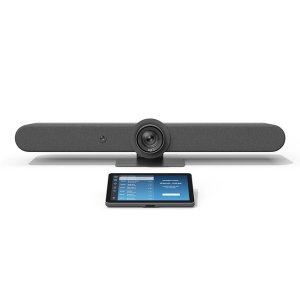
Logitech Rally Bar + TAP IP- Medium- Graphite

Logitech Rally Bar + TAP IP- Medium- Graphite e365 SuperStore are a premier authorised Logitech gold partner with Australian stock and warranty Logitech Rally bar are a Powerful All-in-one Video Conferencing Bar with Brilliant Optics and Automated PTZ. All-in-one Video Bar for Midsize Rooms. Simple to Set and Easy to Use. Only Quality Products. Trusted Australian Vendor. Friendly Customer Service. No Credit Card surcharge. Logitech Tap and Tap IP Compatibility Information  

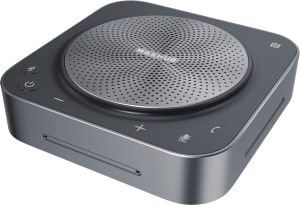
MaxHub Bluetooth Speakerphone UC BM35

MaxHub Bluetooth Speakerphone BM35 Unlock a new level of meeting clarity with the next-generation BM35 speakerphone. Crystal clear audio combines with a powerful pick-range to transform any small to mid-sized meeting space. Break free from the restrictions of wired devices with an agile, flexible solution that adapts as quickly as your team. 

In the home, the business office, or anywhere else, the BM35 is the ultimate part for clear conversations. Comes with 3 year warranty. Amplify Conference Quality with Superior Sound Portability and practicality come together in a powerful audio device, built for better meetings. The BM35 is optimized to keep human voices clear. Capturing every utterance in perfect detail, the BM35 empowers any team.

AVER CAM570 4K DUAL LENS PTZ AUDIO TRACKING CAMERA Stress FREE Installation

AVER CAM570 4K DUAL LENS PTZ AUDIO TRACKING CAMERA AVer CAM570 is a 4K dual lens camera with a 36X Total zoom PTZ camera and a second AI lens with 95˚FOV. Equipped with a built in microphone, CAM570 detects human voices up to 10M and offers audio tracking function. AI technology such as Smart Gallery and gesture control can capture every attendee up-close with premium video quality. 

Built-in Microphone Enables Audio Tracking Easily focus on active speaker with audio tracking mode and presentation mode. The camera will follow the speaker automatically or you can set up a preset point to focus on a specific area. The built in microphone picks up human voices up to 10M without being disturbed by a local speaker.

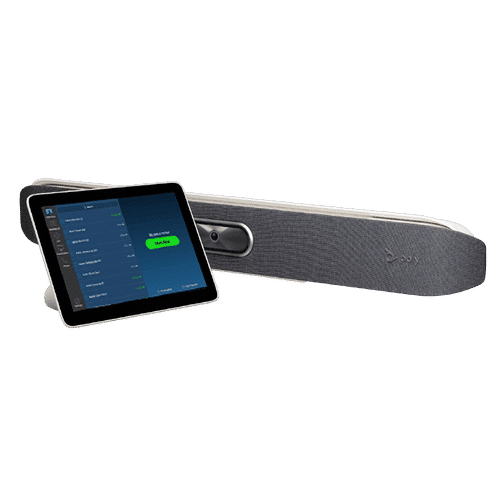
POLY Studio X50 & Poly TC8 4K Video Conf System W 3yr Poly Plus 24x7 Support

Poly studio X50

Poly Studio X50 with touch panel TC8 connects to Microsoft Teams and Zoom The Poly Studio X50 video bar delivers radical simplicity in a small, elegant package. In small- and medium-sized rooms, connect easily with whatever video collaboration software you may use. Experience full boardroom-quality audio, advanced camera capabilities, and quick wireless content—all in one sleek video bar. 

And say goodbye to unnecessary pucks, cords, and cables, along with the PC or Mac to drive the meeting, since the Poly Video OS runs the show. Easy to install, easy to manage. • Ideal for rooms of up to 8 participants • Surround everyone with the rich, legendary sound with stereo speakers that deliver immersive, room-filling audio • Dual monitor support ensures you have the ideal setup for room of many sizes • Be heard clearly with next generation microphone array

DTEN ME 27 All in One Zoom device

DTEN ME 27 All-in-One Personal Collaboration device for Zoom DTEN ME – the ideal solution for working from home Combining the technology in the DTEN ME with loom’s enterprise-quality software delivers the ideal solution for the home office. Simply login with your Zoom user account and create an instant office experience without any additional licenses. 

This solution integrates Zoom Meetings, phone calling, whiteboarding and annotation in a 27 multi-touch display built for the desktop. It is designed to keep your work­space clutter free and organized to deliver a professional meeting experience.

CommBox - Elegance XL Cart

CommBox – Elegance XL Cart Understatedly stylish fixed-height mobile stand with a pen shelf and designer hubless lockable castors. The cart suits CommBox screens up to 110″. Other features include 3″ heavy-duty locking castors and a handy pen and equipment shelf.

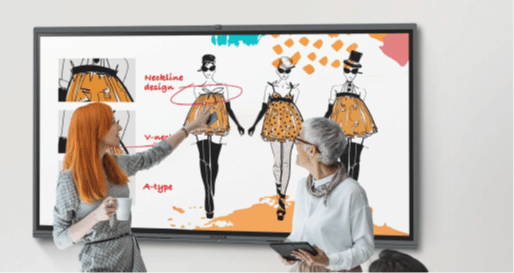
Maxhub v6 Collaboration Display - Maxhub C7530

Maxhub C5530

Maxhub v6 Collaboration Display – Maxhub C7530 Maxhub C7530 v6 Classic Series Maxhub C7530 The Maxhub C7530 – Integrating professional video conferencing, seamless screen-sharing, advanced whiteboard technology, and a brilliant audiovisual experience, is the ultimate corporate-collaboration assistant. 

Drive productive teamwork and increase organizational efficiency with this meeting-room must-have. Installation and Integration Australia Wide Total Solution, Minimal Setup – Maxhub C7530 A complete, seamless design fulfills every meeting requirement, including built-in camera, mic, and touch panel. Whether video conferencing or hosting a local discussion, it’s as easy as plugging in your power cable.

Cisco Webex 8875 IP Phone - Corded - Corded - Wi-Fi, Bluetooth - Desktop - Carbon Black - VoIP - IEEE 802.11a/b/g/n/ac - 2 x Network (RJ-45) - PoE Port

Cisco Webex 8875 IP Phone – Corded – Corded – Wi-Fi, Bluetooth – Desktop – Carbon Black – VoIP – IEEE 802.11a/b/g/n/ac – 2 x Network (RJ-45) – PoE Port CP-8875-K9= Webex 8875 IP Phone – Corded – Corded – Wi-Fi, Bluetooth – Desktop – Carbon Black Webex 8875 IP Phone – Corded – Corded – Wi-Fi, Bluetooth – Desktop – Carbon Black – VoIP – IEEE 802.11a/b/g/n/ac – 2 x Network (RJ-45) – PoE Ports Enjoy superior voice communications while retaining the convenience and user-friendliness over Internet Uses VoIP technology to transfer audio signals over the Internet while circumventing high toll charges by telephone companies

Yealink MeetingBoard 86 inch for MS Teams

Yealink MeetingBoard 86 inch Collaboration Display For Microsoft Teams e365 SuperStore are a premier authorised Yealink Platinum partner with Australian stock and warranty Simple to Set and Easy to Use. Only Quality Products. Trusted Australian Vendor, Many Payment options, Same Day Delivery, Friendly Customer Service. 

No Credit Card surcharge. (stand available separately) Unlock Creative Teamwork The Yealink Meeting Board collaboration display effectively facilitates powerful digital collaboration by combining everything in the room, from the computing unit to a wide 86-inch touchscreen display, 4K camera, microphones arrays, speakers, and built-in Microsoft Teams. The Android 10 OS and an Octa-core high-performance chipset offer maximum performance.

Facebook
Twitter
LinkedIn
Picture of e365 Superstore

e365 Superstore

e365 Superstore are experts in video conferencing equipment. We have completed thousands of projects over the last 25 years and we are passionate about virtual communications. Click here to find out more about our company.

Top 4 Trends Within the Video Conferencing Industry

Home » Videoconferencing Industry

Top 4 Trends Within the Video Conferencing Industry

Nowadays, every modern company is using video conferencing to stay connected. Whether it’s with international clients, collaborating with suppliers or working with a remote team, the industry has been growing consistently. Advanced Technology has now formed a part of a smarter video conferencing experience. We cover the top 4 innovations that are using technology to provide better experiences for users and build smarter systems.


Table of Contents

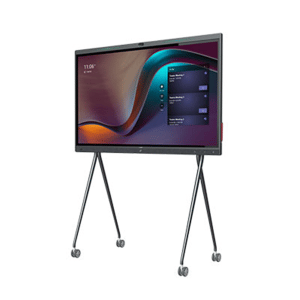
Lenovo has recently developed an Augmented Reality solution that allows users to experience a virtual room filled with video conferencing gear. The first of its kind, Lenovo is creating unique customer experiences and engaging users with its brand [1]. By hovering over equipment, users can find out more information, explore the space and interact with the features inside the room. 

Customers are bombarded with marketing messages every day, so Augmented Reality allows brands to showcase their offerings, inform and co-create brand experiences in an exciting and interactive way [2]. The immersive experience is available to the general public and there is no signup required before you can try this out for yourself. Tom Hamblyn (Business Development Manager ANZ) of Lenovo discusses the inspiration behind the project below.

With the world working remotely at unprecedented levels there were two challenges that the Smart Collaboration Team at Lenovo experienced, when rolling out meeting room technology. The first was getting customers to visualise our portfolio inside a real meeting room. The second was to have easy access to the most relevant information from the product manuals. This project from our Worldwide marketing team continues to push the boundaries of how best to support Lenovo customers with current challenges, as well as ones that are being brought to light in the modern working world. Watch this space, as we continue to build more information and product ranges into the AR Room Visualiser."

Key Features

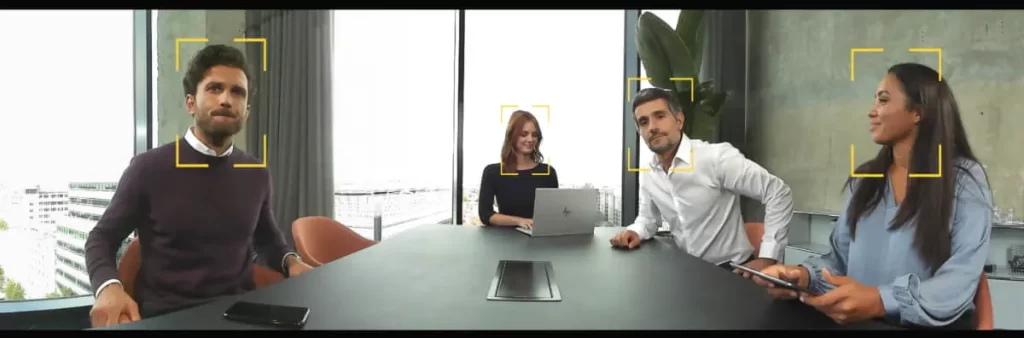
With online video calls being frequently used and employees splitting their time between working from home and the office, video conferencing hardware has never been more in demand. One of the suppliers that have harnessed this demand is Jabra. They have released camera systems that provide high resolution, as well as high pixel quality, regardless of the number of people in each frame.  

This will mean that video calls will emulate having a meeting in real life, as every eye movement, alongside, any slight gesture is captured in real time. With every individual displayed in HD resolution, users can communicate more transparently, as no one is blurry in the frame. At a time when social connection is imperative and people are spending more time online, Jabra has truly leveraged the importance of human interaction by building this unique feature inside its cameras. To find out more about this, UTC covers the whole story.

AI Transcription and Noise Cancelling Technology

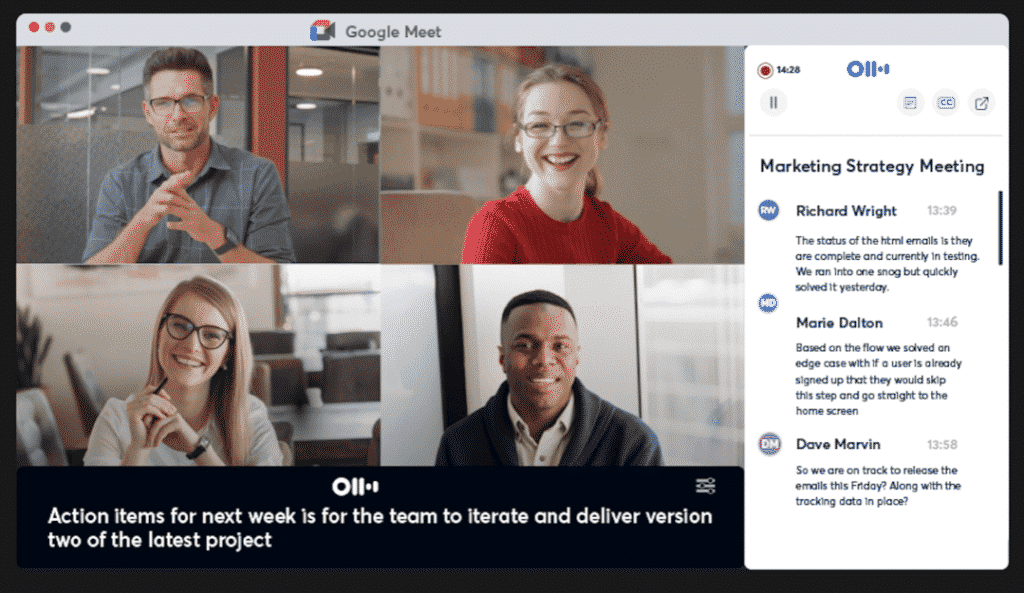
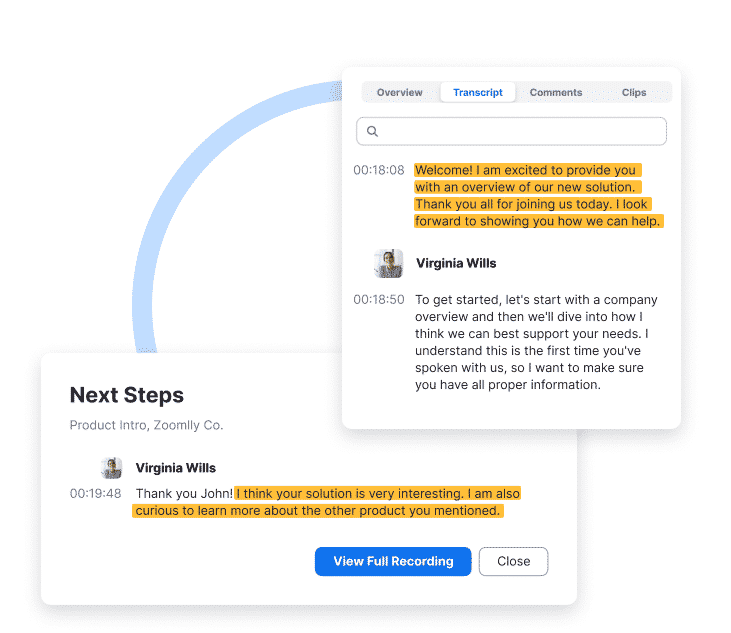
As immersive and easy video calls are, we all struggle to remember exactly what was said by whom, it happens to the best of us. Cloud-based video platforms such as Google Meet and Zoom have added transcription features to their video meetings so you never miss a word again. Virtual software companies, such as Otter.ai, allow users to capture the minutes of their meetings in real-time so they never have to remember what was discussed. Once a meeting concludes, users can simply download a PDF file and look over the content for every online meeting. 

Alongside this, is the noise cancelling technology now available with Google hardware products. After Zoom took the initiative, Google shortly followed. It allows users to have video calls without background interactions affecting your audio quality. Everyone has been the victim of a barking dog or a noisy background conversation, which makes it impossible to hear on the other end. This feature cuts the background noise out of every video call and shifts the focus back on the presenter. Therefore, enhancing communication and making the video conferencing experience more enjoyable.

IQ for Sales by Zoom

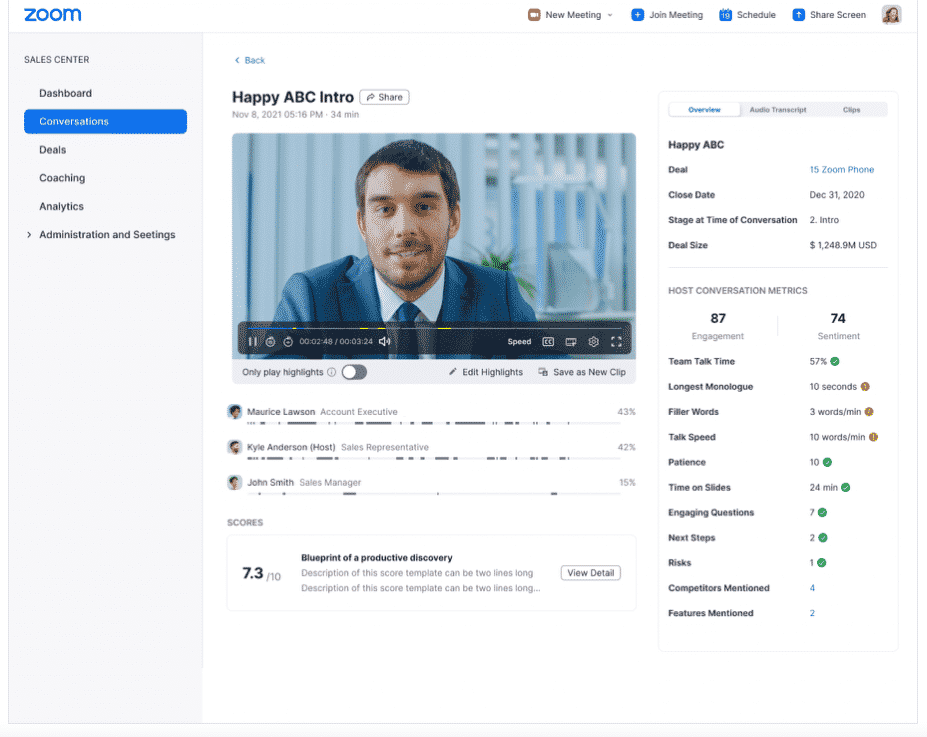
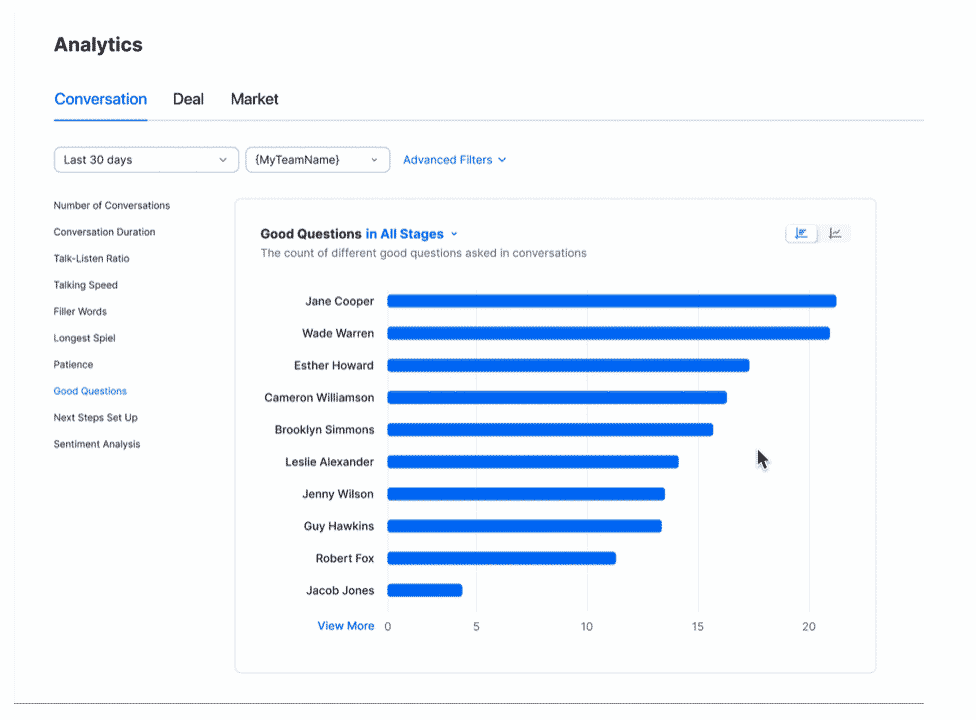
IQ for sales, allows sales teams to become more effective by capturing valuable data recorded from real customer interactions. It provides an opportunity to improve your sales process with an overview of key data generated after every call. Managers can analyse data such as, how many questions their team asked on sales calls, how fluid an interaction was and how many interactions progressed through their sales funnel. This feature uses the latest Artificial Intelligence technology to capture detailed information and inform teams for better decision making in the future.

This solves the issues of tracking your team’s performance, development of relationships with key clients and so much more. It’s an excellent addition to any professional sales team looking to enhance their performance. With so many attributes, it’s only a matter of time until sales teams everywhere will leverage this technology. Zoom continually manages to stay in the forefront of video conferencing technology and it will be interesting to see what they come up with next.

Key Features

The e365 Industry Blog covers all of the latest trends within the video conferencing Industry and a range of useful tips to improve your online meetings. With the industry increasing its technological capabilities, it can be difficult to ascertain the core benefits to users in both the long and short term. Our blog allows users to know in an instant, how this technology will add value to their business and their online relationships. Sign up to our email list below, to be notified when we post our next blog and newsletter. 

[post-views]

Sign Up For Our Newsletter to Receive Regular Specials!