Zoom Rooms all-in-one usb video conferencing device

Lenovo Business Video Conferencing Solutions

A meeting room that needs five minutes of cable swapping, account troubleshooting, and camera adjustments is not ready for business. Lenovo business-grade collaboration solutions video conferencing is designed to replace that friction with purpose-built room systems that IT teams can manage, users can operate, and procurement teams can standardize across sites.

For organizations running Microsoft Teams, Zoom, or a mixed collaboration environment, Lenovo brings a practical enterprise hardware approach: dedicated compute devices, room controllers, conferencing bars, intelligent cameras, and accessories built for commercial uptime. The value is not simply putting a camera in every room. It is creating a repeatable meeting experience that works the same way in a huddle space, a boardroom, and a regional office.

Why Lenovo business video conferencing fits commercial spaces

Consumer-grade webcams and personal speakerphones can be useful for ad hoc calls, but they create inconsistency when deployed as a room standard. Devices are moved, cables disappear, updates are missed, and users are left guessing which input to select. That is an expensive way to run meetings when executive time, client relationships, and distributed teams depend on clear communication.

Lenovo’s business collaboration portfolio is designed around dedicated room experiences. Systems such as Lenovo ThinkSmart solutions can provide the computing foundation for Microsoft Teams Rooms or Zoom Rooms, while compatible cameras, audio devices, touch controllers, and displays complete the installation. The result is a room that launches scheduled meetings from a single interface instead of relying on an employee’s laptop.

That distinction matters most when the room is shared. A dedicated platform keeps the meeting experience available regardless of who is present, reduces reliance on personal devices, and gives IT a more controlled environment for updates, security policies, and device monitoring.

Start with the room, not the product list

The right Lenovo deployment depends less on headcount than on how the space is actually used. A six-person room with remote participants needs different coverage from a training room where 20 people may be speaking, presenting, and joining from multiple locations.

Huddle rooms and small meeting spaces

Small rooms often benefit from an all-in-one video bar paired with a touch controller or room scheduling display. The objective is simple: wide camera framing, dependable pickup for nearby voices, and a clear one-touch join experience. A compact Lenovo ThinkSmart setup can be a strong fit where organizations want a dedicated platform without overbuilding the room.

The trade-off is audio reach. An all-in-one bar may be ideal in a compact room but can struggle when participants sit farther from the device or when the room has hard surfaces and poor acoustics. Before selecting hardware, measure the room, identify seating positions, and consider whether ceiling, tabletop, or expansion microphones are required.

Medium conference rooms

Medium rooms are where standardized room systems deliver their best return. These spaces usually need a camera with better framing control, audio designed for a larger table, and content-sharing options that do not force users to crawl behind a display. A dedicated Lenovo compute system with a certified peripheral ecosystem gives buyers more flexibility than a single fixed bar.

This is also the point where camera placement becomes a genuine design issue. A camera mounted too high can make faces look distorted. A display mounted too low can block sightlines. USB cable lengths, network access, power locations, and service access behind the display should all be confirmed before installation day.

Large rooms, boardrooms, and divisible spaces

Large spaces rarely succeed with a one-device approach. They may need multiple displays, PTZ cameras, expansion audio, wireless presentation, and control integration. If the room can be divided into separate spaces, the system must account for changing camera, microphone, and display behavior.

Lenovo can act as the room compute layer in these higher-spec projects, but the wider system needs careful integration. This is where a specialist supplier and installation partner adds value: matching certified peripherals, validating platform compatibility, and ensuring the final design remains manageable after handover.

Choose the platform before standardizing hardware

Lenovo business-grade collaboration solutions video conferencing can support different meeting ecosystems, but organizations should make a platform decision early. Microsoft Teams Rooms is often the natural choice for businesses centered on Microsoft 365, shared calendars, Teams calling, and Azure-based identity management. Zoom Rooms may be the better fit for organizations already running Zoom Workplace or supporting a large external meeting audience.

A mixed environment is possible, particularly in organizations that have acquired other businesses or support client-facing meeting workflows. However, mixed-platform rooms introduce operational complexity. Staff must know which rooms support which service, support teams need different management processes, and room signage must be unambiguous.

Standardizing on one primary room platform does not mean every room must have identical hardware. It means users see familiar controls, IT manages a smaller number of device types, and procurement can negotiate and forecast with greater confidence. Use different room configurations where needed, but keep the core user experience consistent.

What business buyers should validate before purchase

The most common conferencing procurement mistake is comparing only headline specifications. Resolution, field of view, and microphone count matter, but they do not tell the full story. Commercial buyers should confirm certification status, management capability, warranty coverage, and compatibility with the chosen room platform.

Ask whether the system is a Windows-based room solution or an appliance-style deployment. Windows-based systems can offer flexibility and familiar enterprise management options, but they may require more active lifecycle planning. Appliance solutions can reduce some maintenance tasks and speed up deployment, though they may offer fewer configuration options. Neither is automatically better. The best choice depends on internal IT standards, scale, and support resources.

Also confirm the physical design before approving a quote. Check display size and viewing distance, camera position, microphone coverage, network requirements, Wi-Fi policy, available power, and whether users need wired or wireless content sharing. These details prevent costly variations once installers are on site.

For multi-site rollouts, build a standard bill of materials for each room type. For example, create approved packages for focus rooms, small meeting rooms, standard conference rooms, and executive boardrooms. This speeds up purchasing, makes support documentation more useful, and prevents every location from becoming a one-off design.

Deployment is where the business case is won

A high-quality Lenovo room system will still disappoint if deployment is treated as a simple box-drop. The best installations start with a room survey, followed by a documented design that covers mounting, cabling, network configuration, user accounts, platform licensing, and test procedures.

IT teams should also decide who owns first-line support. If employees cannot join a meeting, they need a clear path for help that does not involve searching through disconnected vendor manuals. A practical support model includes basic room instructions, remote monitoring where available, escalation contacts, and a process for handling replacement hardware.

Commercial buyers should consider lifecycle planning at the same time. Meeting room technology is not a one-time capital purchase. Displays age, room software evolves, platform certifications change, and office layouts shift. Choosing business-grade equipment from recognized collaboration vendors makes that lifecycle easier to manage, especially when devices are standardized and supported through a specialist channel.

Build a better buying process

The strongest procurement outcome is rarely the lowest price on a single component. It is the lowest total operational cost across the full deployment: compatible hardware, correct installation, user adoption, warranties, and support. A poorly matched camera or underpowered audio solution can create more cost in lost meeting time than it saves at checkout.

Start by documenting the rooms you need to equip and classifying them by size, use case, and platform. Then request a solution that identifies the Lenovo core device, certified audio and video peripherals, displays, mounting, cabling, and deployment requirements together. This gives decision-makers a real comparison rather than a collection of unrelated SKUs.

For organizations purchasing across multiple sites, e365 SuperStore can assist with commercial quoting, collaboration hardware selection, integration guidance, and Australia-wide delivery support. That approach is particularly useful when procurement needs one accountable technology supplier instead of multiple disconnected vendors.

The next productive step is to walk into your most frequently used meeting room and observe the first two minutes of a real call. Any delay, confusion, poor framing, or weak audio is a design requirement waiting to be addressed.
Yealink MeetingBoard for Smarter Meeting Rooms

A meeting room should not need a cart full of cables, a separate camera, an external speakerphone, and five minutes of troubleshooting before the first person can speak. Yealink MeetingBoard is built to replace that fragmented setup with one interactive collaboration display that handles video meetings, digital whiteboarding, content sharing, and room audio from a single focal point.

For IT teams and facilities leaders standardizing meeting spaces, the appeal is clear: fewer components to procure, fewer points of failure to support, and a more consistent experience for employees and guests. The right deployment, however, depends on room size, platform requirements, wall design, network readiness, and how people actually work together.

What Yealink MeetingBoard Brings Into One Device

Yealink MeetingBoard is an all-in-one collaboration board designed for modern meeting rooms, hybrid project spaces, executive briefing rooms, and education environments. Instead of treating a display, camera, microphones, speakers, and whiteboard as separate purchases, it brings those functions together in a large-format touch display.

The central feature is the interactive display. Teams can annotate presentations, sketch process maps, capture decisions, and continue working on shared whiteboards while remote participants follow the conversation. This is materially different from a standard meeting room display. A conventional screen is primarily for viewing content; an interactive board is intended to make the room an active workspace.

Video and audio are integrated for a cleaner installation and a simpler user experience. Depending on the model and selected platform configuration, organizations can use the board as a native Microsoft Teams or Zoom Rooms endpoint, or connect through a supported room workflow. Integrated intelligent camera functions can improve framing for people in the room, while built-in microphones and speakers reduce the need for desktop speakerphones and standalone conferencing bars.

That consolidation is valuable, but it does not eliminate design decisions. A premium all-in-one board is not automatically the best answer for every room. Large boardrooms with complex audio requirements, divisible spaces, or multiple camera angles may still need a modular AV design. MeetingBoard is strongest where ease of use, interactive collaboration, and a tidy room aesthetic matter as much as high-quality video.

Where a Yealink MeetingBoard Makes the Most Sense

The best use case is a room where people regularly need to talk, share, mark up, and decide. Think project rooms, leadership meeting spaces, client presentation rooms, design workshops, training rooms, and classrooms where remote participation is part of normal operations.

In a small huddle room used mainly for quick calls, a dedicated video bar and modest display can be more cost-effective. In contrast, placing a large interactive board in a room where no one ever annotates or whiteboards can mean paying for capability that goes unused. Procurement should start with behavior, not a specification sheet.

MeetingBoard becomes especially compelling for organizations trying to reduce variation across sites. A standardized board gives users a familiar way to join meetings, present content, and use a digital canvas whether they are in a head office, regional branch, training facility, or customer-facing workspace. Consistency also helps IT support teams create clearer instructions and manage fewer device categories.

For education and training, the value extends beyond video meetings. Instructors can annotate live material, save working notes, and bring remote attendees into a more engaging session. Screen size should be selected according to viewing distance and room layout, not simply by choosing the largest panel that fits the wall.

The all-in-one trade-off

The commercial advantage of an all-in-one solution is reduced hardware sprawl. There are fewer boxes to mount, fewer visible cables, and fewer compatibility questions during procurement. It can also shorten deployment timelines when compared with building a room from separate display, camera, audio, compute, and control components.

The trade-off is that the display, audio, camera, and collaboration functions are tied to one platform. If your organization requires specialized ceiling microphones, advanced room control, broadcast-grade camera coverage, or an unusually long room layout, a modular solution gives more flexibility. The right choice depends on the room, the collaboration model, and the service expectations after installation.

Planning the Room Before You Buy

A successful MeetingBoard rollout starts with the room rather than the product. Measure the available wall, check viewing angles from every seat, and identify whether glass walls, windows, lighting fixtures, or furniture will affect camera performance and screen visibility. Bright rooms may need considered positioning to prevent glare, while rooms with large glass surfaces can create challenging acoustics.

Network design deserves equal attention. A collaboration board is a business communications endpoint, not a consumer TV. Confirm wired network availability, Wi-Fi coverage where needed, segmentation policies, authentication requirements, firmware management processes, and the approach to guest sharing. Teams and Zoom environments also require appropriate room licensing and tenant configuration. Hardware selection without platform readiness is a common cause of delayed go-lives.

Power and mounting should be planned early. A professionally mounted interactive display needs suitable wall structure, safe cable routing, accessible power, and a practical service path for future maintenance. Mobile stands can be useful in flexible training rooms or multipurpose spaces, but they are not always the right answer for high-traffic meeting rooms where a fixed installation delivers a more polished result.

It is also worth deciding how users will share content. Some organizations want wireless presentation as the default. Others prioritize HDMI for guest reliability, while many use both. The most practical design gives users a clear primary path and a dependable fallback, rather than presenting several confusing ways to start a meeting.

Platform and management questions to resolve

Before placing a purchase order, confirm which collaboration platform will be standard in the room. If Microsoft Teams is the primary meeting environment, determine whether the intended configuration supports the required Teams Rooms experience, account type, calendar behavior, and meeting controls. Apply the same discipline for Zoom Rooms or mixed-platform organizations.

IT should also consider remote management, security updates, device inventory, user access, and support ownership. A board may be physically installed by facilities, configured by IT, and used daily by every department. Clear handover procedures prevent the familiar situation where a room device works perfectly on day one but has no defined owner six months later.

Choosing the Right Display Size and Deployment Model

Display size is not merely a visual preference. It affects readability, camera positioning, room flow, and budget. A 65-inch board often suits smaller collaboration rooms where participants sit relatively close. An 86-inch option can make more sense in larger rooms, training spaces, or executive environments where content must remain readable from the back of the room.

Mounting height matters just as much. Position the display too high and it becomes uncomfortable to annotate. Position it too low and seated participants may lose sightlines. The ideal placement balances touch access for standing users with comfortable visibility for everyone else.

For multi-site projects, standardizing on one or two room types can improve buying power and simplify support. For example, an organization may establish a small-room standard and a larger interactive-room standard, each with defined accessories, mounting method, network requirements, and commissioning checklist. This approach is usually more efficient than allowing every site to choose a different configuration.

Buying With Deployment Support in Mind

Meeting room technology is often purchased under pressure: a lease fit-out is approaching, an executive space needs to open, or a hybrid-work policy has exposed weak room experiences. Fast procurement matters, but a low hardware price is only part of the commercial equation.

Buyers should assess warranty coverage, local technical support, delivery capability, installation coordination, integration expertise, and whether the supplier can source related equipment when requirements change. Accessories such as wall mounts, mobile carts, cabling, room schedulers, touch controllers, and network components can affect both the final budget and the quality of the finished room.

e365 SuperStore supports commercial buyers with product guidance, competitive quoting, Australia-wide delivery, and installation and integration services for organizations that need more than a box delivered to site. That is particularly useful when MeetingBoard is part of a larger refresh involving Teams Rooms, Zoom Rooms, digital signage, headsets, or multiple meeting spaces.

A well-specified Yealink MeetingBoard should make the room feel easier on the first Monday after installation, not just look impressive during handover. Start with how your people meet, map the technical requirements around that behavior, and choose a deployment partner prepared to support the room long after the screen is mounted.

Buy Video Conferencing Equipment at e365 SuperStore

A meeting room can look fully equipped and still fail at the moment it matters: the camera frames only half the table, remote attendees cannot hear side conversations, or the display will not wake when a presentation begins. These problems are rarely solved by buying a single premium device. When you buy video conferencing and collaboration equipment online at e365 SuperStore, the smarter approach is to build around the room, the meeting platform, and the people expected to use it.

For IT managers, procurement teams, and facilities leaders, the objective is clear: specify equipment that works together on day one, can be supported over time, and gives every attendee a reliable meeting experience. That means looking beyond product specifications and considering room size, acoustic conditions, control requirements, network readiness, and deployment across sites.

Start With the Space, Not the Product

A small huddle room has very different requirements from a boardroom, training suite, or divisible conference space. A compact USB video bar may be the right answer for a four-person room where users connect a laptop and start a call. In a larger room, it may leave far-end participants looking at distant faces and struggling to follow discussion.

Begin with the room dimensions, table layout, seating capacity, and primary use. Is the space mainly used for Microsoft Teams or Zoom meetings? Will presenters need to share content from personal devices? Is the room also used for town halls, training, or client presentations? These answers determine whether a simple all-in-one device, a dedicated room system, or a modular AV design is the better commercial choice.

Lighting and acoustics deserve equal attention. A camera with intelligent framing cannot fully compensate for strong backlighting from windows. Likewise, a high-quality speakerphone cannot overcome persistent echo in a large room with hard surfaces. Sometimes the right purchase includes acoustic treatment, external microphones, additional speakers, or display placement changes rather than a more expensive camera alone.

Choose the Right Collaboration System Architecture

Video conferencing equipment generally falls into three practical categories. Each has a place, and each involves trade-offs.

BYOD systems for flexible rooms

Bring-your-own-device setups connect a user laptop to a conference camera, speakerphone, video bar, or room display. They suit organizations where staff use different calling platforms or where the room needs to remain flexible. They also tend to be quick to deploy and familiar to users.

The trade-off is consistency. Every meeting depends on the user’s laptop, cable, permissions, and selected platform. In a busy office, that can create avoidable support calls. Choose certified USB peripherals, clear connection points, and a simple room guide if BYOD is the preferred standard.

Dedicated Microsoft Teams or Zoom Rooms

A dedicated room system is purpose-built for a consistent platform experience. Typically, it includes a compute appliance or room controller, touch console, camera, audio hardware, and display. Users can join scheduled meetings from the console rather than connecting a personal laptop.

This approach is particularly effective for executive rooms, standardized meeting spaces, and organizations with high meeting volume. It supports a cleaner user experience and centralized management, but it requires careful platform licensing, network configuration, and room account planning. It is not automatically the right choice for every small room, especially where platform use changes frequently.

Modular systems for larger or specialist spaces

Larger rooms often need more than an all-in-one video bar. Modular systems can combine PTZ cameras, ceiling or table microphones, DSP audio processing, amplifiers, speakers, touch controls, multiple displays, and wireless presentation tools.

Modular design provides better coverage and more precise control, but it also increases the importance of professional integration. Compatibility, cable pathways, control programming, and commissioning need to be considered before equipment arrives on site. This is where a specialist supplier adds real value beyond a shopping cart.

Buy Video Conferencing and Collaboration Equipment Online With Compatibility in Mind

Compatibility should be a procurement requirement, not a final check. A camera may work as a USB peripheral but lack certification or preferred functionality for your chosen platform. A touchscreen may be excellent for room booking but unsuitable as a Teams Rooms controller. A wireless presentation device may support screen sharing but not the enterprise security settings your IT team requires.

Create a short system map before ordering. It should identify the meeting platform, room type, display connections, camera, microphones, speakers, control interface, content-sharing method, and network requirements. For multi-room projects, define approved equipment standards so teams are not managing a different combination of products in every location.

Pay close attention to these practical points:

  • Platform certification and required licenses for Microsoft Teams, Zoom, or other UC environments.
  • USB, HDMI, USB-C, Ethernet, and power connections, including cable lengths and extension requirements.
  • Camera field of view and optical zoom relative to the distance between the camera and participants.
  • Microphone pickup range, noise reduction, and whether additional expansion microphones are needed.
  • Display size, brightness, viewing angles, and commercial-duty rating for the room environment.

A lower upfront price can become expensive if the equipment needs adapters, replacement components, or a redesign before it can be deployed. Conversely, buying the highest specification in every category can waste budget in smaller spaces. The best result is fit-for-purpose standardization.

Build the Room Around Audio First

Remote participants will forgive a slightly imperfect camera angle more readily than poor audio. If they cannot clearly hear the conversation, meetings become repetitive, slow, and frustrating. Audio should therefore be treated as a core design decision, not an accessory.

For small rooms, an integrated video bar or premium speakerphone may provide effective microphone and speaker coverage. Medium rooms may need expansion microphones or separate audio components. Boardrooms, classrooms, and training spaces often benefit from ceiling microphones or professionally designed DSP-based audio, particularly where multiple talkers need to be heard evenly.

Consider how people actually use the room. Do attendees sit around a long table? Do they stand at a whiteboard? Will one person present from the front while others participate remotely? A system that sounds good from one seat may not support the full meeting environment.

Specify Displays and Content Sharing for Real Workflows

The display is not just a screen for seeing remote attendees. It is where teams review spreadsheets, collaborate on designs, annotate content, and present to clients. A display that is too small for the room will reduce its value regardless of the quality of the conferencing hardware.

For standard meeting rooms, commercial displays offer features that consumer televisions may not, including longer operating ratings, stronger warranty suitability, professional inputs, remote management, and installation flexibility. Touch displays make sense in spaces built for active workshop collaboration, classroom engagement, or whiteboarding. They are less necessary in rooms used primarily for short status meetings.

Content sharing is another decision that depends on behavior. Wired HDMI or USB-C connections are predictable and cost-effective. Wireless presentation can improve convenience and reduce cable clutter, but should be assessed against security policies, guest access needs, and network design. Many organizations use both: a reliable wired option at the table and wireless sharing for everyday convenience.

Plan for Deployment, Support, and Lifecycle Costs

Buying equipment online should not mean buying without assistance. For a single room, a clear bill of materials and simple installation guidance may be enough. For multiple offices, executive spaces, or complex AV systems, quoting, integration, installation, and technical support should be part of the purchasing decision.

Ask practical questions before approving a quote. Who will install and commission the equipment? Is the room ready for power, data, mounting, and cable management? Who will provide user training? What happens if the platform changes or a device needs replacement? These details influence downtime far more than a small difference in product price.

Commercial buyers should also consider warranty coverage, availability of replacement stock, and the ability to maintain consistent product standards as more rooms are added. A discontinued camera or controller can complicate a rollout when the organization expands six months later.

e365 SuperStore supports this commercial purchasing model with a broad selection of conferencing, collaboration, display, audio, and workplace technology, backed by technical guidance and deployment services for projects that need more than boxed hardware. For Australian organizations, Australia-wide delivery and specialist support can simplify procurement across dispersed locations.

Make the Purchase Decision Easier

The strongest online purchase is not necessarily the lowest-priced individual product. It is the solution that meets the room’s purpose, works with the organization’s collaboration platform, and remains easy for employees to use. Standardize where possible, invest in audio where it has the biggest impact, and reserve advanced modular hardware for rooms that genuinely need it.

Before placing an order, picture a first-time user walking into the room two minutes before a client call. If they can see the display, join the meeting, share content, and be heard without searching for cables or calling IT, the equipment selection is doing its job.

Logitech Rally Bar Review for Modern Meeting Rooms

A meeting room system earns its keep when remote participants can clearly see the person at the far end of the table, hear the quiet contributor near the wall, and join without calling IT. This Logitech Rally Bar review looks at whether Logitech’s all-in-one video bar delivers that standard for business meeting rooms – and where buyers should set realistic expectations.

The Rally Bar is not a consumer webcam enlarged for the boardroom. It is a purpose-built appliance and USB conferencing peripheral designed for organizations standardizing rooms around Microsoft Teams, Zoom, and other leading meeting platforms. Its appeal is clear: a high-quality camera, speakers, microphones, compute capability, and cable management all consolidated into a single device.

For IT teams, facilities managers, and procurement buyers, that consolidation can reduce installation complexity and create a more consistent room experience. The right decision still depends on room dimensions, seating layout, acoustic conditions, control requirements, and the collaboration platform already in use.

Logitech Rally Bar Review: What It Does Best

The core strength of the Rally Bar is its ability to deliver a professional meeting experience without requiring a separate camera, speakerphone, and microphone array in a typical medium-to-large room. The motorized PTZ camera supports 4K video and up to 5x optical zoom, allowing it to frame participants more effectively than a fixed wide-angle camera when people are seated farther from the display.

Logitech’s AI Viewfinder is particularly useful in rooms where users do not sit in the same places every time. It can automatically frame active meeting participants rather than leaving large areas of empty wall or tabletop in the shot. Auto-framing is not a replacement for thoughtful camera placement, but it makes a meaningful difference in flexible meeting spaces and executive rooms with changing attendance.

Audio is another reason the Rally Bar remains a strong commercial choice. Its beamforming microphone array is designed to focus on voices while reducing surrounding noise, while the integrated speakers provide far more authority than the speakers built into most commercial displays. For standard rooms with normal ceiling heights and reasonable acoustic treatment, this combination is clean, clear, and easy to operate.

The all-in-one design also has practical value beyond appearances. Fewer exposed components can mean less cable clutter, fewer points of failure, and a faster path from installation to a usable room. That matters when rolling out multiple rooms across an office, campus, or distributed workplace.

Appliance Mode and USB Mode Give Buyers Options

The Rally Bar can operate as a dedicated room appliance or as a USB peripheral connected to an existing room computer. This flexibility is one of its strongest buying arguments, especially for organizations managing different room standards across locations.

In appliance mode, the Rally Bar runs supported video conferencing room applications directly on the device through Logitech CollabOS. For a Microsoft Teams Rooms or Zoom Rooms deployment, this can reduce the hardware footprint behind the display and eliminate the need for a dedicated Windows compute unit in some room designs. Pair it with a compatible touch controller, provision the room correctly, and users receive a familiar join-and-control experience.

USB mode suits businesses that already have a room PC, need a specific conferencing application, or prefer centralized control of the compute environment. In this configuration, the Rally Bar functions as a premium camera, microphone, and speaker system. It is also a sensible choice for spaces used with BYOD workflows, provided the organization has planned the required cabling, switching, and user access.

There is no universal winner between these modes. Appliance deployments can simplify room hardware and reduce setup time, while PC-based rooms may offer more flexibility for specialized applications, enterprise management policies, or multi-platform requirements. The best approach is the one that matches the organization’s existing room strategy rather than forcing every space into the same configuration.

Video Quality Is Strong, but Room Design Still Matters

The Rally Bar produces sharp, natural video in well-lit meeting rooms. The camera’s optical zoom gives it a major advantage over lower-cost video bars in rooms where the farthest participants sit several feet from the display. It is capable of creating a more intentional, broadcast-like view of a meeting rather than the distorted, overly wide image common with entry-level systems.

That said, even premium conferencing hardware cannot solve poor room conditions on its own. Strong backlighting from windows can still affect faces, dark walls can absorb available light, and glossy tables can create distracting reflections. A professional deployment should consider display height, camera position, window coverings, lighting, and the distance between the Rally Bar and the nearest participant.

The device is generally best suited to medium and larger meeting rooms where camera control and stronger integrated audio matter. In a small huddle room, its capabilities may be more than the space needs. Logitech’s more compact video bar options can represent better value in those environments, particularly when everyone sits close to the display.

Audio Coverage Has Limits

The integrated audio system is impressive for an all-in-one bar, but room size and acoustics should drive the final specification. A long boardroom with hard surfaces, open ceilings, heavy HVAC noise, or participants positioned beyond the intended pickup range may require expansion microphones or a more comprehensive audio design.

This is where many projects go wrong. Buyers compare video bar specifications, select the highest-rated model, and assume the room is covered. In practice, microphone coverage needs to account for the furthest chair, not just the center of the table. For larger spaces or rooms with challenging acoustics, adding the correct expansion microphones and conducting a proper site assessment is the commercially safer choice.

Setup Is Straightforward, but Enterprise Rollouts Need Planning

For a single room, the Rally Bar is relatively quick to deploy. It can be mounted above or below a display, connected to power and network, paired with the selected control interface, and configured for the chosen platform. Logitech’s device management tools also help administrators monitor status, apply updates, and manage room devices at scale.

A multi-room rollout requires more discipline. Network ports, VLAN policies, device enrollment, room accounts, touch controller placement, display control, power access, and cable pathways should be documented before installation begins. The video bar itself may be simple, but the meeting room is part of a broader technology environment.

Organizations should also decide how users will start meetings. A dedicated Teams Rooms or Zoom Rooms setup provides the most polished experience for scheduled calls. A shared USB room may offer broader compatibility but can introduce support issues when users bring different laptops, adapters, and conferencing clients. The Rally Bar supports either direction, but it cannot remove the operational trade-offs between them.

Is the Rally Bar Good Value?

The Rally Bar sits above basic USB cameras and entry-level soundbars in price, and it should be evaluated as a professional room system rather than a simple accessory. Its value comes from combining high-quality optics, intelligent framing, integrated audio, appliance capability, and centralized management in a device built for daily commercial use.

It is a strong investment when the room is client-facing, used frequently by hybrid teams, or part of a company-wide standardization plan. It can also be cost-effective when appliance mode eliminates the need for additional room compute hardware. For a lightly used, four-person room, however, a smaller solution may deliver a better return without sacrificing the user experience.

Buyers should also budget for the full room, not just the video bar. The final solution may include a commercial display, touch controller, scheduler panel, expansion microphones, mount, cabling, installation, and platform licensing. Treating these as an afterthought is how a technically capable product becomes an incomplete meeting room.

Who Should Buy the Logitech Rally Bar?

The Rally Bar is an excellent fit for businesses that need a polished, scalable conferencing experience in medium and larger rooms. It is particularly well matched to organizations standardizing on Microsoft Teams Rooms or Zoom Rooms, as well as IT teams that want the choice of appliance and USB operating modes.

It is less compelling for very small rooms, highly irregular spaces, or rooms where participants are spread across a long table beyond the integrated microphone coverage. In those cases, a compact bar, modular camera system, or expanded audio configuration may be the better technical and financial answer.

For procurement teams, the key is to buy against the room plan rather than a specification sheet. e365 SuperStore can help match the Rally Bar, mounting, control, display, and audio components to the way your teams actually meet. A well-designed room should feel invisible to users: they walk in, tap join, and the conversation starts clearly.

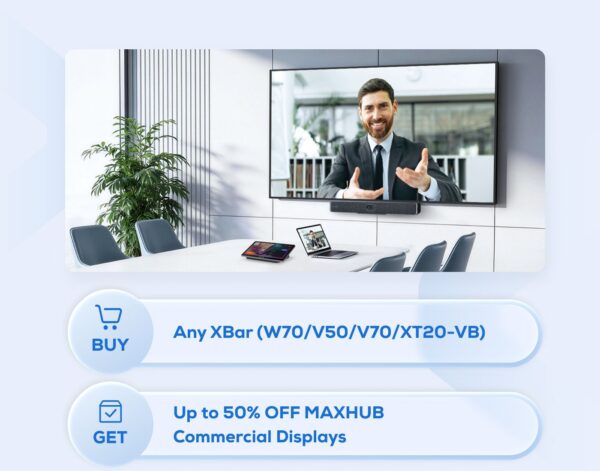
Maxhub Special Bundles for EOFY with up to 50% Discounts on Commercial displays.

Maxhub Special Bundles for EOFY with up to 50% Discounts on Commercial displays.

Call us on 1800 111 387 for a FREE demonstration, Quote or buy on line


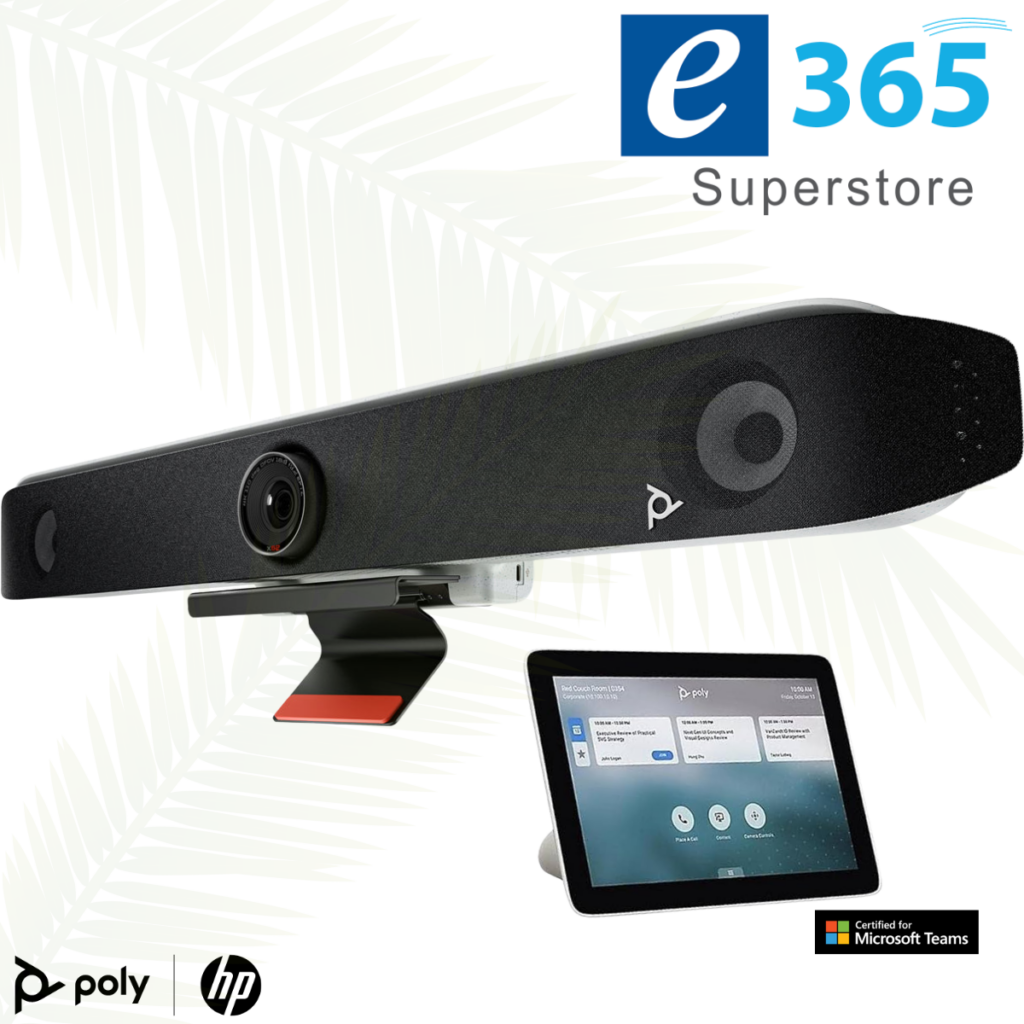
HP Poly Studio Videoconferencing solutions First Buy “up to 50% off” for your first room with HP Poly.

HP Poly Studio Videoconferencing solutions First Buy “up to 50% off” for your first room with HP Poly.

Note Valid till June 30 2026 for the v12 – v52 – v72 – x32 – x52 – x72 systems
Call us on 1800 111 387 for a FREE demonstration, Quote or buy on line


LOGITECH RALLY BAR + Tap IP & SAMSUNG 65″ DISPLAY only $7,499

LOGITECH RALLY BAR + Tap IP & SAMSUNG 65″ DISPLAY  only $7,499


LOGITECH RALLY BAR + Tap IP & SAMSUNG 65″ DISPLAY is a Powerful All-in-one Video Conferencing Bar with Brilliant Optics and Automated PTZ. All-in-one Video Bar for Midsize Rooms. Simple to Set and Easy to Use. Only Quality Products. Trusted Australian Vendor. Friendly Customer Service. No Credit Card surcharge.


Crestron UC-B31-T with Jabra® PanaCast 50 Video Bar

Crestron UC-B31-T with Jabra® PanaCast 50 Video Bar

The UC-B31-T Crestron Flex tabletop conferencing system provides a small room video conference solution for use with Microsoft Teams® Rooms software. It supports single or dual video displays1 (not included) and features a tabletop touch screen, Jabra® PanaCast 50 video bar, UC bracket assembly, PoE injector, and cables.

MaxHub XT20-VB Kit Teams Room Bundle

MaxHub XT20-VB Kit Teams Room Bundle

A complete Teams Rooms kit with mini-PC, touch console, and 100MP dual-lens videobar for small to medium meeting spaces.

A MICROSOFT TEAMS ROOMS KIT WITH 11.6″ TOUCH PANEL AND 12TH GEN INTEL CORE I5 MINI-PC

A PLUG-AND-PLAY TEAMS USB VIDEOBAR WITH A 100MP DUAL-LENS CAMERA SYSTEM

The MAXHUB XBar U50 is a USB mode dual-camera Videobar designed for small to medium rooms and BYOD scenarios. With 100MP dual cameras, 12 beam-forming microphones, Al-enhanced audio, and FlexMount for easy installation, it offers plug-and-play conferencing without fixed systems for ultimate flexibility.

NEW at e365 Superstore Barco ClickShare Hub Pro + Huddly® C1™ room system

NEW at e365 Superstore Barco ClickShare Hub Pro + Huddly® C1™ room system

Barco ClickShare Hub Pro + Huddly® C1™ room system
Microsoft Teams Room bundle for enhanced collaboration in small-to-medium-sized meeting rooms.
• Wireless presentation: 4K content sharing with 2 next-gen ClickShare Buttons with USB-C DisplayPort™
• Built on the Microsoft Device Ecosystem platform (MDEP)
• Dual display support
• Huddly AI-driven video bar that scales from standalone to multi-camera
Call us on 1800 111 387 for a FREE demonstration, Quote or buy on line via the link below

HP POLY | VIDEO NEXT GEN TRADE UP to 50% off

HP POLY | VIDEO NEXT GEN TRADE UP to 50% off

Up to 50% Off Meeting Room Refresh when you Trade IN and purchase a Poly v12,v52,V72,X32,X52 and X72 Videoconferencing systems

Trade in valid when you buy 5 rooms or more in a single PO

Validity Until – End of April,2026

What Customers are saying about us

What Customers are saying about us

So good after 27 Years with the many recent kind comments from our customers. Service is everything


  • Great Service….Keep up the great Work.


  • Just friendly acknowledgement Very impressed so far!!!


  • Yes it all went well. Both the guys who came out ask a lot of questions to get it perfect which is good as I can tell they take pride in delivering to a high standard. Feel free to pass that onto them if you can. Much appreciated.

Sign Up For Our Newsletter to Receive Regular Specials!