


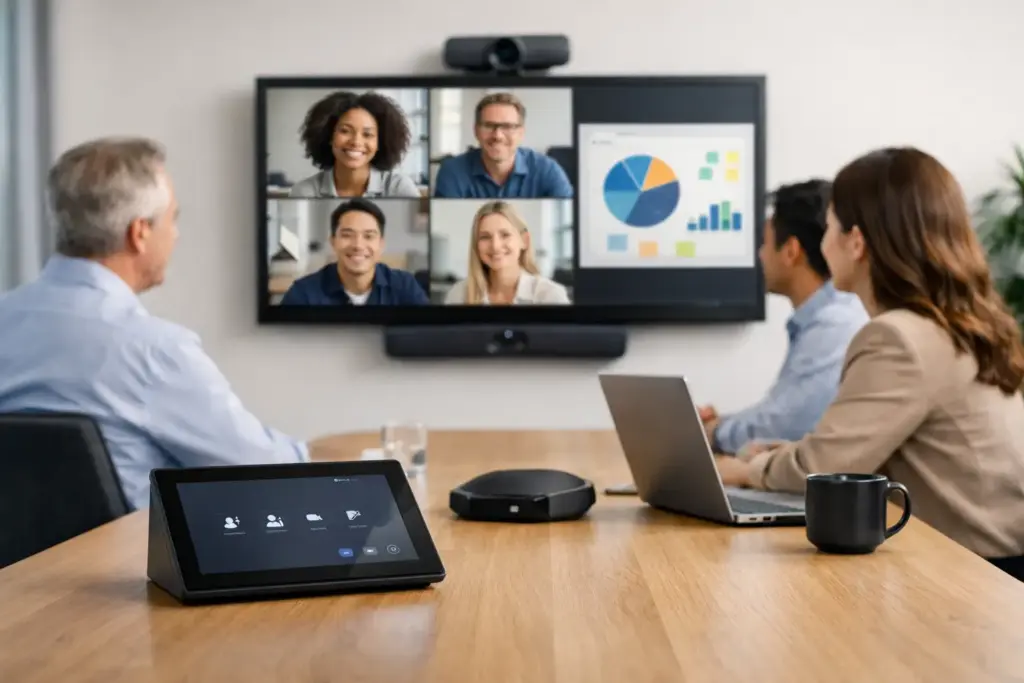
A meeting that starts with someone searching for the right cable, pairing a laptop, or asking, “Can you hear us?” has already lost momentum. So, what is Teams Rooms? Microsoft Teams Rooms is a purpose-built meeting room system that puts Microsoft Teams controls, audio, video, and content sharing into a consistent in-room experience – without relying on a participant’s personal laptop to run the meeting.
For organizations standardizing hybrid collaboration, it is the difference between a room with a collection of peripherals and a room that is ready for business. The system combines dedicated Teams Rooms software with certified hardware, such as a touch controller, conference camera, speakerphone or audio bar, display, and compute appliance.
What Is Microsoft Teams Rooms?
Microsoft Teams Rooms, often shortened to MTR, is a Microsoft Teams application designed for shared spaces. It runs on dedicated Windows or Android hardware and is licensed and managed as a room resource rather than as an individual user.
At the table, users typically tap “Join” on a controller to start a scheduled meeting. They can share content, adjust camera framing, control volume, add participants, and manage the call from the same interface. Remote attendees see the room as a professional video endpoint, while people in the room get clearer audio, better camera coverage, and fewer setup steps.
The value is consistency. A huddle room, training room, executive boardroom, and divisible conference space may use different hardware, but the basic meeting experience can remain familiar. That reduces support calls, shortens meeting start times, and makes technology easier to adopt across multiple locations.
Teams Rooms is not the same as the Teams desktop app
A laptop running Teams can connect a camera and speakerphone, but it is still dependent on the user’s device, account, battery, cables, and settings. Teams Rooms is installed as a shared, always-available system with a dedicated room calendar and certified components designed to work together.
That distinction matters when rooms are heavily booked or used by visitors, executives, clients, or rotating teams. A personal-device setup can be sufficient for an occasional small meeting. It becomes a weak point when every meeting needs to start on time and perform reliably.
How a Teams Room Works During a Meeting
A Teams Room is generally connected to one or two displays, a room camera, microphones and speakers, a touch console, and a network connection. The room appears in Microsoft 365 as a bookable resource. When staff schedule a Teams meeting and invite the room, the meeting shows up on the room console calendar.
When the meeting begins, one touch joins it. The system handles the in-room camera and audio automatically. Participants can present wirelessly where supported, connect a laptop for wired content sharing, or use the room’s front-of-room display to view remote attendees and shared documents.
For hybrid meetings, camera and audio intelligence can make a material difference. Auto-framing cameras can keep active participants visible, while intelligent speakers and microphone systems are designed to capture voices across the table. Larger spaces may require multiple microphones, expansion audio, PTZ cameras, or integrated control systems. The correct design depends on room acoustics, seating layout, ceiling height, and how the space is actually used.
The Core Components of a Teams Rooms System
A Teams Rooms deployment can be compact or highly integrated. The essential components are straightforward, but the right configuration changes by room type.
A small focus room may use an all-in-one video bar with a built-in camera, microphones, speakers, and Teams Rooms compute. This is a clean, cost-effective approach for two to six people. It also reduces the number of devices to install and support.
A medium conference room often needs a separate camera, touch controller, dedicated compute, and larger display. This creates more flexibility around camera placement, screen size, tabletop controls, and audio coverage. For rooms with glass walls, long tables, or challenging acoustics, separate components may be the better commercial decision.
Boardrooms, training rooms, and large divisible spaces require a more considered design. These projects can include dual displays, multiple cameras, ceiling microphone arrays, DSP audio processing, room scheduling panels, USB or HDMI ingest, and control integration. Buying premium hardware without an audio and sightline plan is a common and expensive mistake.
Windows vs. Android Teams Rooms
Teams Rooms hardware is available on both Windows and Android. Neither is universally better.
Windows-based systems are often selected for advanced room integrations, broader peripheral options, and complex enterprise environments. Android-based systems can offer a more compact appliance-style deployment with fewer moving parts. Hardware availability, management standards, feature requirements, and the installed base all affect the decision.
The practical requirement is certification. Certified Teams Rooms devices have been tested for compatibility with Microsoft Teams and are designed to receive the appropriate software and firmware support. Mixing consumer-grade cameras, random USB hubs, and unsupported audio devices may reduce the upfront cost, but it can compromise reliability and make troubleshooting far harder.
What Teams Rooms Licensing Means for Buyers
Teams Rooms requires a dedicated room license in addition to compatible hardware. Microsoft licensing options and entitlements change over time, so organizations should confirm the current requirements before finalizing a rollout.
From a procurement perspective, licensing should be considered alongside hardware, installation, cabling, network readiness, support, and lifecycle replacement. A room is not fully deployed simply because the camera turns on. It must be enrolled, licensed, secured, tested, and handed over with clear ownership for ongoing management.
This is especially relevant for multi-site rollouts. Standardizing on a small number of approved room kits can simplify spares, staff training, documentation, remote support, and future expansion. It can also give procurement teams stronger volume pricing and clearer warranty coverage.
Choosing the Right Teams Room for Each Space
Start with the room, not the product catalog. Measure the space, count typical participants, identify where people sit, and consider whether remote attendees need to see every person or simply the main presenter. Then assess display visibility, ambient light, room noise, and the distance from participants to the camera and microphones.
A six-person room with a short table has very different requirements from a 14-seat boardroom. In the smaller room, an all-in-one bar may provide excellent coverage. In the larger room, the people at the far end may be too distant for a fixed wide-angle camera and integrated microphone array. A PTZ camera and expanded audio can produce a substantially better meeting experience.
Also consider the meeting workflow. If users frequently bring guest laptops, include reliable wired content ingest or approved wireless sharing. If the room hosts confidential meetings, account for privacy, camera placement, and access controls. If it supports workshops, whiteboarding, or teaching, an interactive display and front-of-room camera placement may be more valuable than a standard dual-screen boardroom layout.
Deployment Details That Affect Reliability
The best Teams Rooms experience is built before the first meeting. Stable wired networking, correct VLAN and firewall configuration, power availability, display control, cable management, and acoustic treatment all have a direct impact on performance.
Management is equally important. IT teams should define how room accounts are created, who receives alerts, how firmware updates are approved, and what happens when a room goes offline. For larger estates, remote monitoring and a documented support process prevent small faults from becoming meeting-day disruptions.
Installation quality should not be treated as an afterthought. A camera mounted a few inches too high, microphones placed beside noisy HVAC vents, or an undersized display can undermine otherwise excellent equipment. For organizations rolling out across offices, classrooms, or customer-facing spaces, professional design and integration protect the investment.
When Teams Rooms Is the Right Investment
Teams Rooms is a strong fit for organizations that use Microsoft Teams as their primary collaboration platform and need meetings to work predictably in shared spaces. It is particularly valuable when employees split time between office and home, when external participants regularly join calls, or when rooms are business-critical.
It may be more system than a rarely used two-person room requires. In those cases, a certified USB video bar or personal conferencing solution can be a sensible alternative. The goal is not to put the same equipment in every space. It is to give each space the level of capability its users need, without creating a patchwork of incompatible technology.
For buyers planning a new room or refreshing inconsistent equipment, e365 SuperStore can help match certified Teams Rooms hardware, displays, audio, and installation requirements to the way the space will actually be used. A well-specified room should feel almost invisible to its users: walk in, tap join, and get on with the conversation.