


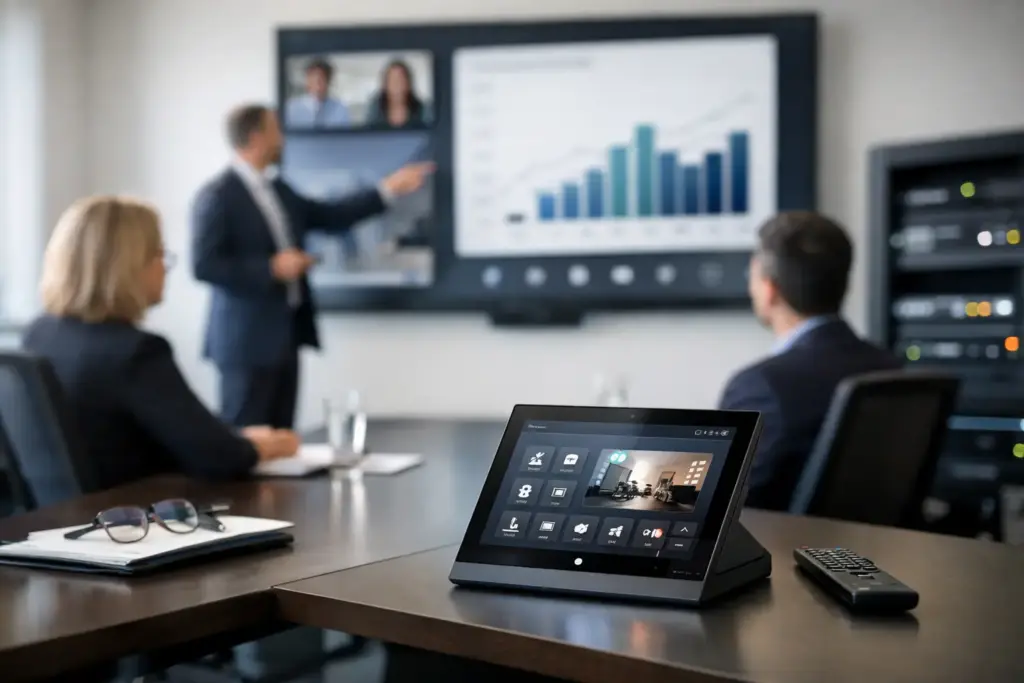
A boardroom should not need a laminated instruction sheet, three remotes, and a call to IT before a client presentation. AV control systems replace that friction with one predictable way to start a meeting, select a source, adjust the room, and shut everything down when the session ends.
For commercial organizations, that simplicity is not a cosmetic upgrade. It protects meeting time, reduces support tickets, encourages adoption of installed technology, and gives IT teams a more manageable standard across rooms and sites. The right system can bring displays, projectors, conferencing hardware, audio processors, lighting, blinds, and occupancy devices into a single user experience.
What AV Control Systems Actually Do
An AV control system is the command layer for a room’s technology. It tells equipment what to do and presents users with the controls they need through a touchscreen, wall keypad, scheduling panel, mobile interface, or computer-based dashboard.
A typical meeting room workflow might begin with a user tapping “Start Meeting.” The system powers on the display, wakes the video bar or conference camera, sets the correct input, adjusts the audio level, and can lower shades or set the room lighting. At the end of the meeting, one command can turn equipment off and return the space to its default state.
The distinction matters: a control system does not necessarily carry video or audio itself. Switching, distribution, DSP, conferencing appliances, and displays each handle their own jobs. The controller coordinates them. In a smaller huddle room, that coordination may be built into an all-in-one device or display. In a divisible training room, it may involve purpose-built processors, touch panels, network interfaces, and carefully programmed logic.
Why Commercial Spaces Need Centralized Control
Most room technology problems are not caused by a lack of devices. They happen because the devices were added at different times, configured independently, and left for users to figure out. A premium display, excellent conference camera, and capable wireless presentation system still create a poor experience if people must guess which remote changes the volume.
Centralized control makes the room easier to operate, but it also creates operational discipline. Facilities teams can standardize shutdown behavior to reduce unnecessary power use. IT can restrict advanced settings that users should not change. Support staff can identify whether a display is offline, a source is disconnected, or a room has been left powered on, depending on the platform and network design.
This is especially valuable where rooms need to work the same way. Corporate offices with repeated room types, university teaching spaces, medical training rooms, council chambers, and multi-site organizations all benefit from a familiar interface. Users should be able to walk into another room and know how to join a video call or share content without a fresh learning curve.
The Business Case Is Usually Time, Not Features
A control system earns its place when it removes recurring waste. If five people lose six minutes at the beginning of a weekly meeting because the room will not start correctly, the cost compounds quickly. Add executive rooms, customer-facing spaces, classrooms, and shared training areas, and the impact becomes material.
That does not mean every room needs a sophisticated custom controller. A two-person focus room with a USB conference camera and a single display may be better served by a simple, reliable setup. The goal is appropriate control, not maximum complexity.
Choose the Control Approach for the Room Type
The starting point is not the touchscreen. It is the room workflow. Define what people need to do in the space, how often they do it, and which actions must happen consistently.
A basic meeting room may need only display power, source selection, volume, and video conferencing control. A boardroom may require multiple presentation sources, dual displays, a conferencing appliance, ceiling microphones, amplified speakers, cameras, room scheduling, and support for guest devices. A training room may add lecture capture, confidence monitors, assisted listening, and partition control when rooms combine.
Native Room Controls
Many Microsoft Teams Rooms, Zoom Rooms, commercial displays, and all-in-one video bars include their own controllers or touch interfaces. This is often the fastest and most cost-effective option for standardized rooms with straightforward requirements.
Native controls are a strong choice when conferencing is the center of the room experience and the equipment list is limited. The trade-off is flexibility. If the room later adds third-party AV switching, motorized shades, complex audio, or multiple operating modes, native controls may not provide the depth required.
Dedicated AV Control Platforms
Dedicated platforms are designed to coordinate multiple technologies and create a tailored user interface. They are commonly specified for executive boardrooms, large conference rooms, lecture theaters, training facilities, and divisible spaces.
Their advantages are broad device compatibility, custom logic, scheduling integration, remote monitoring options, and a consistent user experience across complex rooms. The trade-off is that design and programming require experienced integration work. A poor control interface can make expensive equipment harder to use, so the programming scope should never be treated as an afterthought.
Hybrid Control Designs
Hybrid systems are increasingly common. A Teams or Zoom touch console may remain the primary interface for calls, while a dedicated AV touchscreen handles room modes, lighting, advanced camera presets, source routing, or divisible-room functions.
This approach can be effective, but only when responsibilities are clear. If users must use one panel to join a call and another to select a camera without obvious guidance, the design has failed. Good hybrid rooms hide complexity rather than moving it between screens.
Key Design Decisions Before You Buy
Procurement should begin with a room brief, not a list of product part numbers. The most successful deployments identify the practical requirements early: room capacity, furniture layout, display locations, video platform, presentation sources, accessibility needs, network rules, and support model.
There are four decisions that deserve particular attention:
- User workflows: Document the most common tasks first, such as starting a Teams meeting, sharing from a laptop, switching to a guest presentation, or running a training session. The interface should make these actions obvious within one or two taps.
- Control connections: Devices may be controlled over IP, serial, USB, infrared, relay, or digital I/O. IP control is flexible and increasingly common, but it depends on sound network planning, security policies, addressing, and device management.
- Failure behavior: Consider what happens when the network drops, a display is replaced, or a conferencing appliance restarts. Critical functions should recover predictably, and support teams need a clear way to diagnose faults.
- Future expansion: Allow for additional sources, cameras, room sensors, or displays where growth is likely. This does not mean buying unused capacity everywhere. It means avoiding an installation that can only be changed through major rework.
Don’t Underestimate Audio and Network Dependencies
Control is only as dependable as the systems it manages. In larger rooms, audio is often the limiting factor. Ceiling microphones, beamforming arrays, digital signal processors, USB bridges, amplifiers, and speakers need to be designed as a complete signal path. A touchscreen cannot solve echo, poor gain structure, or a microphone placed too far from participants.
The same applies to networking. Managed AV devices need appropriate VLAN design, secure credentials, firewall rules, PoE capacity, and stable addressing. IT teams should be involved early, particularly where conferencing systems, digital signage, wireless presentation, building management systems, or remote management services share the network.
A practical specification also identifies ownership. Facilities may manage lighting and shades, IT may manage networked devices and collaboration platforms, while an AV integrator supports programming and hardware. Without agreement on who handles which issue, remote monitoring can generate alerts without anyone accountable for resolving them.
Make the Interface Simple Enough for Guests
The best control interface is rarely the one with the most pages. A visitor should be able to enter the room, understand how to begin, and present content without training. Advanced functions can be available, but they should not dominate the opening screen.
Use plain labels. “Present Laptop” is clearer than “HDMI Input 2.” “Camera Presets” is more useful than “PTZ Control.” Confirm potentially disruptive actions, such as ending a session or shutting down a room, but do not add confirmation screens to routine tasks. Small delays and unclear labels are exactly what cause users to reach for a help desk number.
Consistency also matters more than visual novelty. If every room uses the same names, icons, and button positions, staff build confidence quickly. That is a significant advantage for organizations standardizing technology across offices, campuses, or customer briefing centers.
Procurement, Installation, and Ongoing Support
AV control systems should be procured as a solution, not as a disconnected collection of controllers, panels, and cables. Compatibility needs to be confirmed across the conferencing platform, displays, cameras, audio hardware, switching, and network environment. Installation quality matters just as much as the equipment selection, particularly for racks, cabling, audio tuning, device labeling, and commissioning.
Before handover, test the real scenarios people will use. Join a scheduled video meeting, share from managed and guest laptops, move between sources, test camera framing, verify audio from every seating position, and confirm the room recovers correctly after a power cycle. Ask support staff to run the test as well. If they cannot understand the system, users will struggle too.
e365 SuperStore can help commercial buyers source compatible conferencing, display, audio, networking, and control hardware with the technical guidance needed to turn a room specification into a deployable solution. For larger or more specialized spaces, engage installation and integration support early rather than trying to solve design gaps after equipment arrives.
The right result is a room that feels almost invisible: people walk in, start work, and focus on the conversation instead of the technology.