


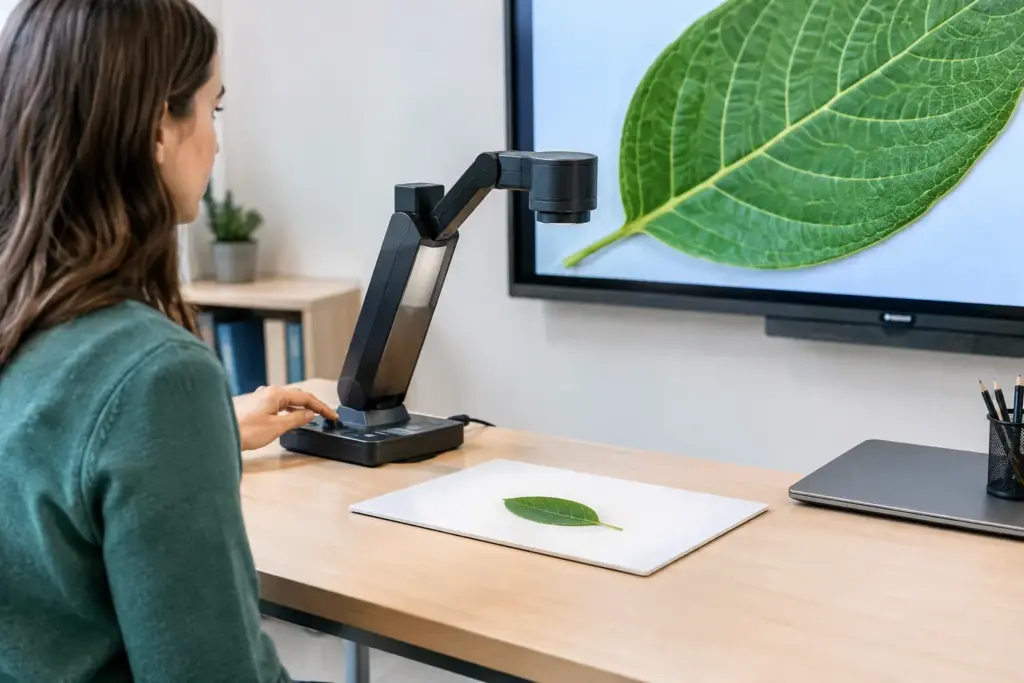
A teacher places a student’s handwritten solution under the camera, marks the exact step where the calculation changed, and asks the class what they notice. That is where classroom document cameras earn their keep. They turn the materials already used in instruction – books, worksheets, lab specimens, manipulatives, and student work – into clear, shared visual teaching moments.
For education leaders and IT teams, the question is not whether a document camera can display an image. Most can. The real question is whether it will work reliably with the room’s display, support the way teachers actually teach, and remain simple enough for daily use across a campus. The right visualizer reduces friction at the front of the room. The wrong one becomes another cable, remote, or login issue waiting for support.
Why Classroom Document Cameras Still Matter
Interactive displays, laptops, and learning platforms have changed the modern classroom, but they have not replaced physical teaching materials. Teachers still need to show a page in a textbook, annotate a worksheet, compare student samples, demonstrate a science activity, or share a 3D object with the whole class.
A document camera makes those moments visible without scanning, printing extra copies, or trying to hold an object up to a webcam. It also keeps instruction responsive. A teacher can move from planned content to a student question, a quick correction, or an impromptu demonstration in seconds.
This matters particularly in elementary classrooms, science labs, technical training spaces, libraries, and special education settings. However, the use case is broader than K-12. Higher education, vocational training, government training rooms, and corporate learning environments can all benefit from a camera that puts physical content on a large display.
The strongest deployments treat the document camera as part of the classroom AV system, not as a standalone accessory. It should sit naturally alongside an interactive flat panel, projector, room PC, laptop connection point, and audio system.
Start With the Teaching Use Case, Not the Spec Sheet
Resolution matters, but it is only one part of a useful buying decision. A 4K camera may be valuable when teachers need to show fine print, artwork, circuit boards, detailed diagrams, or small lab specimens on a large 75-inch or 86-inch display. In a standard classroom focused on worksheets and textbooks, a quality 1080p model can deliver excellent results at a lower cost.
The size and type of material being shown also matters. A flexible camera arm is ideal for books, larger documents, and three-dimensional objects. A compact fixed-head model may suit smaller desks or mobile teaching carts. If teachers regularly demonstrate experiments or practical work, check how easily the camera can be positioned over the work area without blocking their hands or casting shadows.
Lighting is another practical consideration. Auto-focus and auto-exposure should react quickly when the teacher changes pages or moves from a white worksheet to a darker object. Built-in LED lights can help with close-up work, but glare on glossy pages or laminated resources can be a problem. A unit with good image controls gives staff more options than one relying entirely on automatic settings.
For procurement teams, standardization is usually more valuable than pursuing the highest possible specification in every room. Selecting a small number of approved models simplifies training, spares, support, and replacement planning.
Questions Worth Asking Before You Buy
Ask teachers what they need to display most often, then map that to the room’s existing technology. Consider whether the camera will connect directly to a display, to a classroom PC, or to a teacher laptop. Confirm whether staff need to annotate over the live image and whether they expect to record demonstrations for later use.
Also ask who will support the equipment. A camera that needs a driver, a proprietary app, and multiple adapters may be acceptable in a specialist room with local technical support. It is a poor fit for a large rollout where teachers need to walk in, connect, and teach.
Connectivity Determines Daily Adoption
USB is common because it lets a document camera operate like a webcam with classroom software, video conferencing platforms, and recording tools. This is useful for hybrid instruction, remote tutoring, and capturing demonstrations from a teacher laptop.
HDMI is often the more direct choice when the goal is to show live content on an interactive display or projector without relying on software. In many classrooms, having both USB and HDMI provides the most flexibility. Teachers can use HDMI for immediate whole-class display and USB when they need to record, share a live feed during a video call, or use visualizer software.
Wireless connectivity can be convenient, but it should be assessed carefully. It may introduce latency, require network configuration, or create another step for users. For fixed teaching spaces, a wired connection is generally the more dependable option.
Compatibility should be checked at the system level. A document camera may work perfectly on its own yet create issues when paired with a particular display, USB extension, switching system, or room computer. For multi-room projects, test the proposed setup in a real classroom before ordering at scale.
Features That Make a Difference in Real Classrooms
The best features are the ones a teacher can use without pausing instruction. Fast autofocus, clear image quality, a stable base, simple buttons, and a well-designed arm matter more than a long list of rarely used modes.
Annotation capability can be particularly useful when paired with an interactive display. Teachers can freeze an image, write over it, highlight a sentence, label a diagram, or compare two examples. This supports visible thinking and makes feedback more concrete. If annotation is handled through the display rather than the camera software, verify that the workflow is straightforward for staff.
Recording features are helpful in labs, vocational programs, and flipped-learning environments. A teacher can capture a process once and reuse it for revision, absent students, or assessment preparation. Yet recording should not be a deciding feature if it creates complicated file management or depends on software the school does not otherwise use.
Portability can be either a benefit or a risk. A lightweight camera that moves between rooms can stretch a limited budget, especially for smaller schools. But shared devices are more likely to go missing, get damaged, or be unavailable when needed. Fixed installation makes more sense where the camera is used every day or forms part of a standardized teaching space.
Plan for Installation, Training, and Support
A good document camera can still fail to deliver value if it is installed poorly. Positioning affects image quality, cable access, and teacher movement. Cables should be secured and long enough to reach the chosen connection point without creating trip hazards. In rooms with interactive displays, the camera should be close enough for easy use but not placed where it blocks the board or takes up valuable teaching space.
Training does not need to be lengthy, but it should be practical. Show staff how to switch inputs, adjust focus, rotate the image, use a freeze frame, and recover from the most common connection issue. A five-minute demonstration during rollout can prevent repeated help-desk requests later.
For larger education projects, working with a specialist supplier can reduce risk. e365 SuperStore can assist education buyers with product selection, commercial quotes, installation guidance, and technology procurement for classroom AV environments. That is especially valuable when document cameras need to work alongside displays, projectors, conferencing equipment, or centralized room standards.
Choosing the Right Model for Each Space
Not every classroom needs the same document camera. A general teaching room may need a durable, easy-to-use model with HDMI and USB. A science lab may prioritize close-up imaging, flexible positioning, and reliable exposure control. An art or design classroom may need high resolution and accurate color reproduction. A mobile learning cart may favor compact size and quick setup.
Budget should be evaluated over the life of the deployment, not just at purchase. A lower-priced model that is difficult to connect, lacks local support, or needs frequent replacement may cost more over time than a reliable commercial unit with a clear warranty and consistent availability.
Before committing, run a short proof of concept with representative teachers. Test ordinary materials, not just a prepared product demo. Put a creased worksheet, a glossy textbook, a small object, and handwritten student work under the camera. Check the image from the back of the room, confirm the connection workflow, and let teachers decide whether the controls make sense.
The best classroom document camera is not the one with the most impressive specification list. It is the one teachers reach for without thinking because it helps them make the next explanation clearer, faster, and easier for every student to see.